How does user group collaboration work
User group collaboration allows Polly admins to share access to Pollys, templates, surveys, and workflows using Slack user groups instead of adding collaborators individually. Once enabled, Slack user groups can be selected when managing access to Polly content.
When a Slack user group is added as a collaborator, all members of that group inherit the assigned access level. If membership in the Slack user group changes, access is automatically updated to reflect the new group members.
If a user receives access through multiple paths, for example, directly and through a user group, the highest permission level will apply.
Once a Slack user group is added as a collaborator, all members of that group automatically receive the assigned permissions, allowing them to view results or manage the Polly depending on the access level selected.
✏️Note: To collaborate using Slack user groups, the user group must first exist in your Slack workspace. User groups are created and managed directly in Slack and can include multiple members. Once the group is created, it can be selected when sharing access in Polly.
Enable user group collaboration
User group collaboration can be enabled from the Polly admin settings.
-
Open the Polly web dashboard.
-
Navigate to Admin → Settings.
-
Scroll down to the Collaboration section.
-
Under User Groups Collaboration, select Enabled.
-
Click Grant usergroups:read permission to grant the additional Slack permission required to read Slack user groups.
You will be redirected to Slack to re-authenticate Polly and approve the permission request.
-
After completing authentication in Slack, return to the Polly admin settings.
-
Enable the setting again and click Save.
Adding a user group as a collaborator
Once user group collaboration is enabled, Slack user groups can be added when sharing access to Polly content.
-
Open the Polly you want to collaborate on.
-
Click Share.
-
Navigate to the Collaborators section.
-
In the collaborator field, select the Slack user group.
-
Choose the appropriate access level.
-
Click Access and invite.
The selected user group will now appear in the collaborators list.
Admins can also remove a group’s access at any time from the same collaborator settings.
Access levels for collaborators
When adding a Slack user group, you can assign different permission levels depending on the feature being shared.
Permission levels include:
Can view
Allows collaborators to view results or access the content without making changes.
Can manage
Allows collaborators to edit the Polly, manage settings, and update collaborators.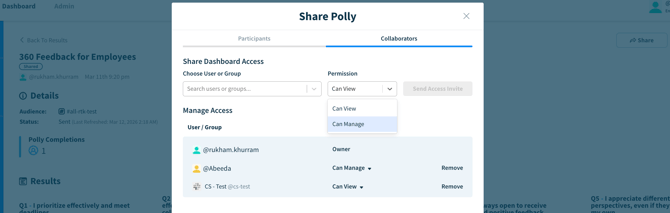
Collaborating on surveys and pollys
User groups can be added as collaborators on standard Pollys, including surveys.
Once added, all members of the Slack user group will receive the selected permission level and will be able to view or manage the Polly accordingly.
Collaborating on Q&A
Slack user groups can also collaborate on Q&A sessions.
After adding a user group as a collaborator, members of that group will be able to help manage the session, including moderation tasks during the Q&A event.
This makes it easier for teams to moderate live discussions together.
Collaborating on workflows
User groups can be granted access to Polly workflows.
To collaborate on a workflow:
-
Open the workflow.
-
Click Share.
-
Add the Slack user group as a collaborator.
-
Assign the appropriate permission level.
Once shared, members of the user group can view or manage the workflow depending on the assigned permissions.
Collaborating on templates
Custom Polly templates can also be shared with Slack user groups.
From the Templates section, open a custom template and add the Slack user group as a collaborator.
Templates support the following permission levels:
Can use
Allows collaborators to use the template without making changes.
Can manage
Allows collaborators to edit the template and update its configuration.
Any changes made by collaborators with manage access will be reflected for all users who have access to that template.
✏️ Note: At the moment, Slack notifications are only sent when collaborating on Q&A. For other collaboration types, such as Pollys, templates, or workflows, collaborators can view and manage access directly from the Polly web dashboard.