
Watch a quick demo of embedding pollys in Notion below:
Overview
Pollys can be embedded directly into Notion pages using either Audience or Presentation view. Once embedded, participants can interact with the polly directly within Notion without needing to open it separately.
Presentation controls and audience interactions continue to function as they normally would within Polly.
How to embed a Polly into Notion
Once your Polly has been created, in the Polly web dashboard:
- Navigate to My Pollys
- Open the Polly you would like to embed
- Click Controls
- Select Embed Polly
- Copy either the Audience or Presentation link
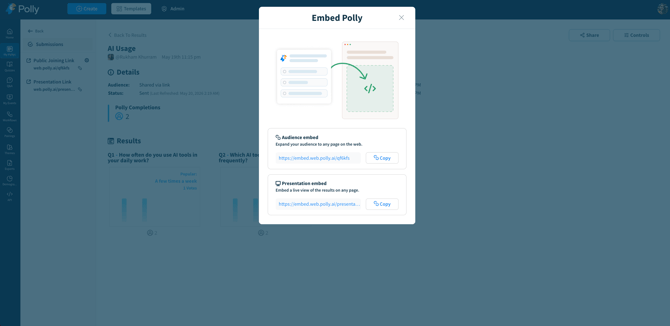
Next, head over to Notion:
- Open the page where you'd like to embed the Polly
- Paste the copied link into the page and select Embed
💡 Tip: The link will automatically unfurl into an interactive Polly embed within Notion.
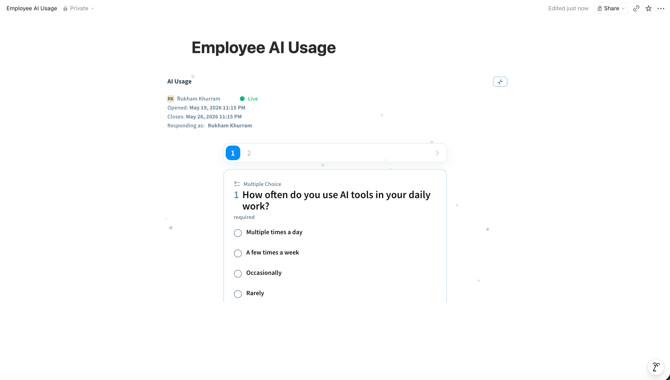
Audience view
Participants can:
- Submit responses directly from the embedded Polly
- View live updates and results (depending on the polly settings)
Presentation view
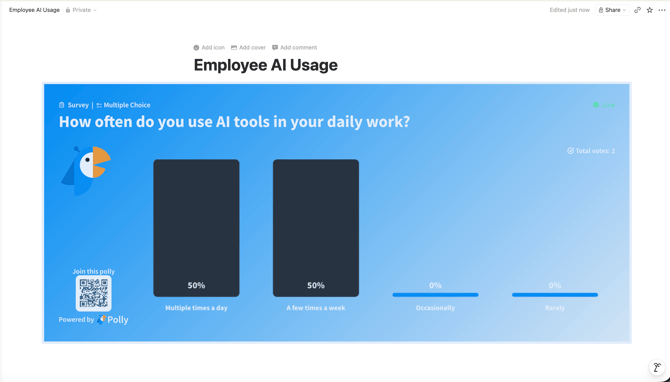
Presentation view is designed for live facilitation and meetings.
When embedded in Notion, Presentation view retains the same presentation functionality available within Polly, including:
- Navigating between questions
- Presenting results live
- Using presentation controls during discussions
✏️ Note: Embedding is currently only supported for public pollys. If your polly is using a protected link, you can update it to a public link either by editing the audience settings or through the Share option to generate the embed link.