
Overview
Polly for Slides is a Google Slides add-on that puts your Polly presentation inside your deck. You can create a presentation without leaving Google Slides, add one you’ve already built in Polly, or add standalone pollys you’ve created in Slack or the web app, then present your own slides and your Polly slides in one flow.
Your presentation lives in Polly, and your deck shows it. Edits to slides, questions and settings sync both ways. How you arrange your deck stays in your deck.
✏️Note: New to presentations? Start with Polly Presentations.
Install Polly for Slides
- Go to Polly for Slides on the Google Workspace Marketplace and click Install.
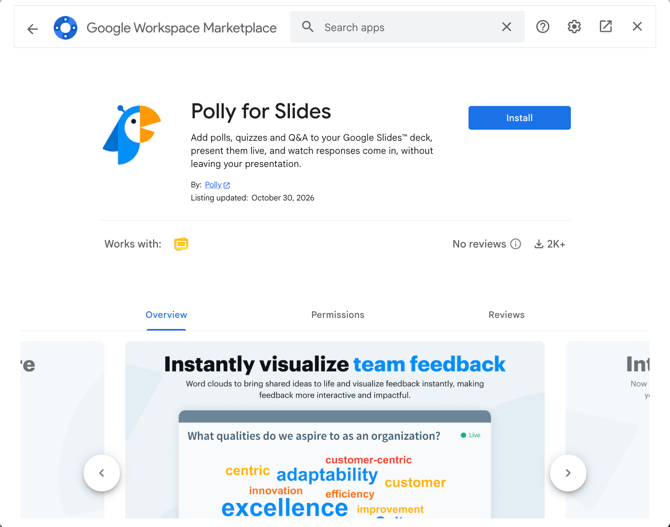
2. Approve the permissions Google asks for.
3. Open any Google Slides deck and go to Extensions → Polly for Slides → Open Polly. The Polly sidebar opens on the right.
✏️Note: Polly for Slides only works with the deck you open it in. It doesn't see or change your other Google files.
Sign in
The first time you open the Polly sidebar, you'll need to sign in:
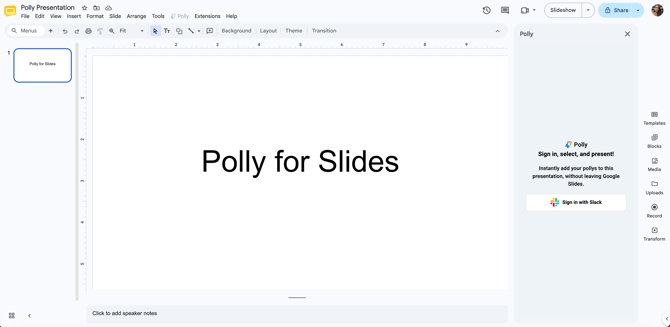
- In the Polly sidebar, click Sign in. A browser window opens.
- Sign in with Slack. If you're in more than one Slack workspace, choose the one you use Polly in.
- Copy the code you're shown and paste it into the Polly sidebar.
You only need to do this once.
Optional: the Chrome extension
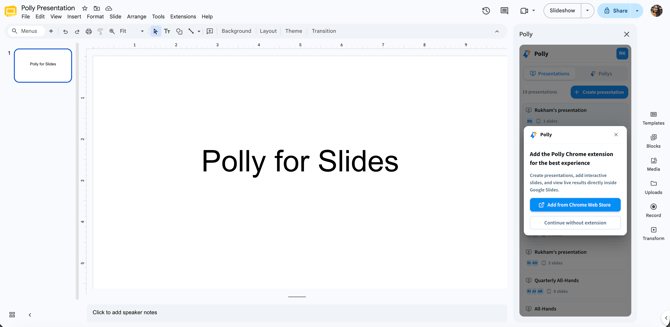
You can use Polly for Slides on its own, but the Polly for Google Slides Chrome extension gives you the best experience. With it, you can present with Google’s own Slideshow button for a smoother, more seamless experience. See Present below for the difference.
If you open Polly without the extension, you’ll see a prompt to add it. Click Add from Chrome Web Store to install it, or Continue without extension to carry on with just the add-on.
When you add the extension for the first time, Google asks you to allow a few permissions so Polly can read your deck and show your Polly slides live. Once it’s installed, you can also open the Polly sidebar from the Polly icon in Chrome’s toolbar.
Add Polly to your deck
Once you're signed in, pick what to add from the sidebar.
Add a presentation
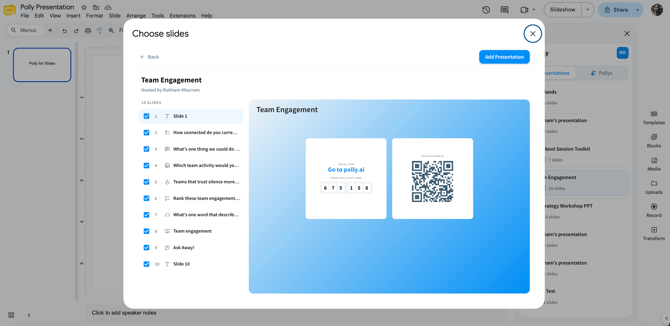
- Pick an existing presentation from the list, or click Create to start a new one.
- Choose which slides to add. Every slide is selected by default, so untick any you don't want in this deck.
- Add them to your deck. Each Polly slide gets its own Google slide.
- Move your Polly slides wherever you want them, between your own slides.
In this deck and not in this deck
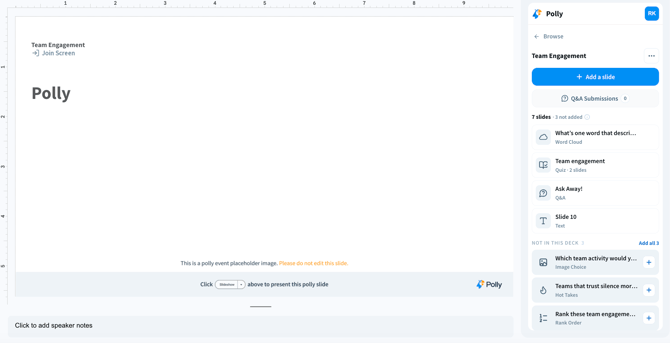
The sidebar shows your presentation's slides in two lists. In this deck is what your audience will see. Not in this deck holds slides that are part of the presentation but not added to this deck yet. Add them any time.
Add standalone pollys
Standalone pollys are pollys you've already created in Slack, or the web app. Add them to your deck to run a single question or Q&A without building a presentation.
- In the Polly sidebar, open the standalone pollys list. Live and scheduled pollys and Q&As both appear, and scheduled ones are marked Pending.
- Pick the polly you want and add it. It gets its own slide in your deck.
- To add another polly, repeat these steps. Pollys are added one at a time.
A deck holds either one presentation or standalone pollys. If you switch from one to the other, you'll be asked to confirm first.
Edit from Google Slides
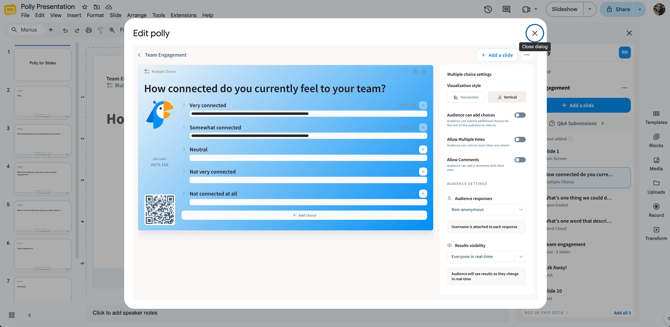
Click a Polly slide in the sidebar to open it in the editor window. Change the question, options and settings, such as anonymity or Q&A moderation, or add new slides. Changes save to the presentation in Polly, so they show up on the web and in any other deck the presentation is in.
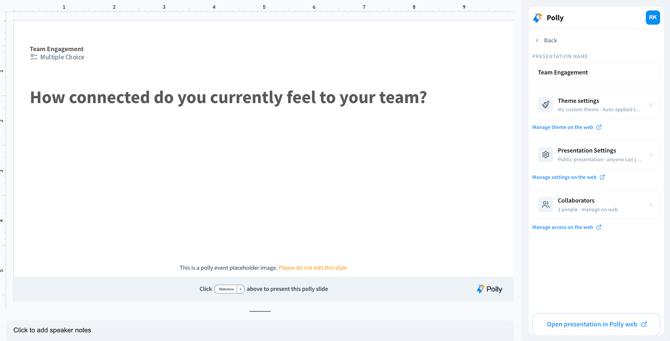
Presentation settings update in real time. You can change the theme and access settings right from the Polly sidebar, or in Polly on the web. Collaborators are managed on the web, and the sidebar shows how many you have.
What syncs and what stays in your deck
The same presentation can be used in several decks by different people. So editing content updates everyone, while arranging your own deck only changes your deck.
💡Tip: Removed a slide by mistake? It moves to Not in this deck in the sidebar. Add it back any time. Its questions and responses are still there.
Present
There are two ways to present. Both play your whole deck, your own slides and your Polly slides together, with the Polly slides live.
✏️ Note: Without the Chrome extension, Google's Slideshow button shows placeholder images in place of your Polly slides. To present live, use Present in the Polly sidebar, or add the extension.
Present from the Polly sidebar
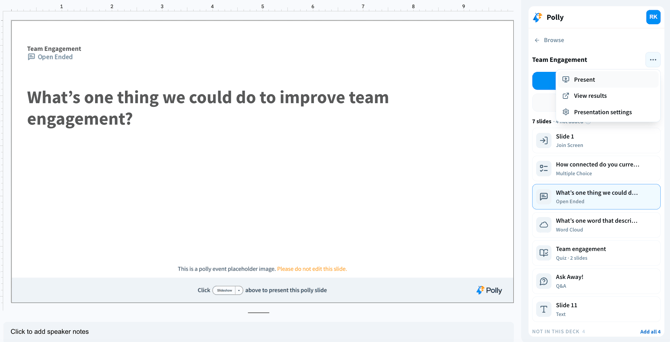
Click Present in the Polly sidebar, then click ⋯ and choose Present. A new tab opens and plays your full deck, with your Google slides shown as images and your Polly slides live.
Present with Google's Slideshow button
With the Polly Chrome extension installed, click Slideshow in Google Slides as you normally would. Polly slides go live as you reach them.
Either way, your audience's screens follow along as you move through the slides, and the join code and QR code appear on your Join Screen.
See results
Results update live on your slides while you present. Open any Polly slide in the sidebar for a quick look at its results, or click through to Polly on the web for full results and exports.
Results always belong to the presentation and the session, never to a deck. Reordering or removing slides in your deck doesn't change what's recorded.
Good to know
- Closed the sidebar? Reopen it any time from Extensions → Polly for Slides → Open Polly.
- On a regular Google slide, your audience keeps seeing the last Polly slide you showed.
- Using Safari, Firefox or another browser? The Chrome extension only works in Chrome. Present from the Polly sidebar instead, which works in any browser.
FAQ
I reordered my slides in Google Slides. Why is the order different on the web? Your deck can have its own order. Reordering in Google Slides changes your deck only.
I deleted a Polly slide from my deck. Are its responses gone? No. The slide, its settings and its responses are all still in the presentation. Add it back from Not in this deck whenever you need it.
What can Polly for Slides access in my Google account? Only the deck you open it in. It adds and updates Polly's own slides there and reads your slide order so it can present them. It doesn't store your slides or touch your other files.
Why do my Polly slides show as placeholders in the slideshow? You're presenting with Google's Slideshow button without the Chrome extension. Present from the Polly sidebar, or add the extension.
Still stuck? Open a ticket and our support team will help.