
How it works
Once enabled, you can talk to Polly directly through Slackbot in Slack. Describe what you want in plain language and Polly handles the rest — drafting the polly, applying your settings, and sending it to the right audience.
For example, you can ask Slackbot to:
- Create a 5-question survey on a topic
- Set responses to anonymous
- Send a polly to a specific channel
- Pull up the results from a recent poll
- Send a reminder to people who haven't responded yet
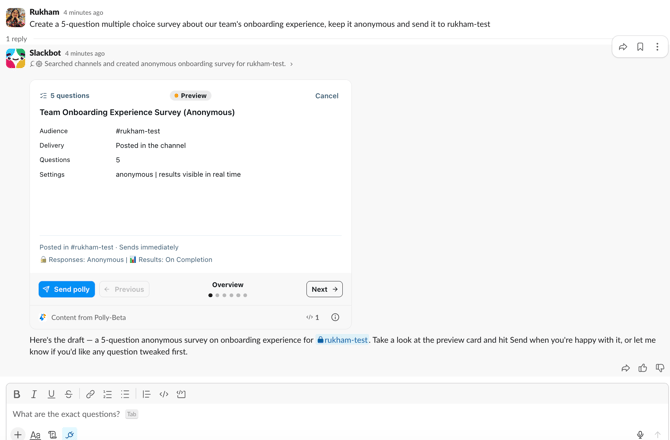
Before sending, Polly drafts the polly and shows you a preview for confirmation. You can review and approve before anything goes out.
Getting started
Step 1: Enable the Slackbot connection
Navigate to the Polly App Home in Slack and click Enable Slackbot. This opens the permission flow where you can approve the mcp:connect scope, which allows Polly to connect with Slackbot.
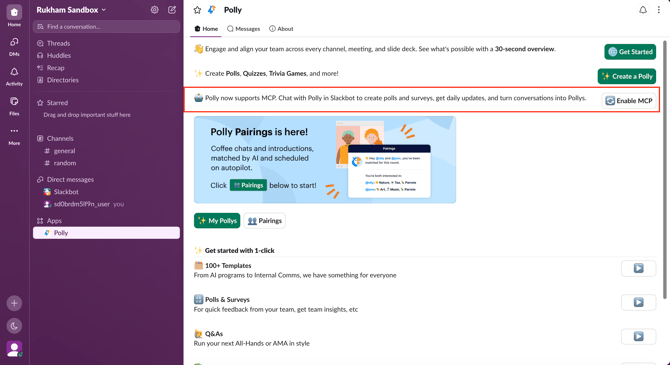
It is selected by default during install — if you skipped it, you can grant it at any time from the App Home prompt.
✏️ Note: The Enable Slackbot prompt only appears if you haven't yet granted this permission. Once approved, it will no longer be visible in the App Home.
If you don't see the prompt, you can grant the mcp:connect scope directly.
Step 2: Start chatting
Open Slackbot in Slack and start describing what you'd like to do. The first time Polly uses a tool, Slack will ask you to confirm — select Always allow to avoid being prompted again for that action
Creating a polly
You can create a single-question Polly or a multi-question Polly from Slackbot using a simple text prompt.
Example prompts:
- "Create a 5-question multiple choice survey about our team's onboarding experience"
- "Make an anonymous poll asking the team which day works best for our all-hands"
Polly will draft the polly based on your prompt and display a preview. From the preview, you can:
- Review and confirm before sending
- Edit settings like anonymity
- Approve and send to your chosen audience
✏️ Note: Certain features may require a paid plan. You'll be prompted to upgrade if you attempt to use a feature that isn't included in your current plan.
Viewing and managing results
You can check results, refresh response counts, and send reminders directly from Slackbot — without navigating back to the original thread or the web dashboard.
Example prompts:
- "Show me the results from my last poll"
- "What are the results from my onboarding survey?
Results are displayed in a card in Slack with response counts and breakdowns by answer.
Here's the full set of actions available through the Polly MCP Server:
Polls (single question)
- Draft Poll — Preview a poll before sending. Always the first step.
- Create Poll — Publish a poll after you've confirmed the draft.
- Update Poll — Edit a live or scheduled poll (question text, options, close time).
Surveys (2+ questions)
- Draft Survey — Preview a multi-question survey before sending.
- Create Survey — Publish a survey after confirmation.
- Update Survey — Edit a live or scheduled survey (title, questions, close time).
Lifecycle Management
- Close Polly — End voting on an active poll or survey immediately.
- Reopen Polly — Reopen a closed poll/survey with a new close date.
- Cancel Draft — Discard an unsent draft (irreversible).
- Send Reminder — DM everyone who hasn't voted yet on an open poll/survey.
Reading & Discovery
- List Pollys — Browse your polls or surveys with filters (status, channel, date, etc.).
- Get Polly — Fetch metadata for a specific poll or survey by ID.
- Get Polly Results — View vote counts and distributions for a poll/survey.
- Get Draft — Check the status of a draft (pending, sent, or cancelled).
- Search Templates — Browse Polly's built-in templates or your own saved ones.
Question Types Supported
Multiple Choice, Open Ended, NPS, Scale 1–5, Scale 1–10, Agree/Disagree, Yes/No, Word Cloud, Ranked, Point Allocation, and Emoji Rank.
✏️ Note: Open-ended response content is not shared with the AI for privacy reasons. The bot will indicate when responses are kept private.