
Overview
A presentation is one place to build and run everything your audience interacts with during a session: polls, quizzes, surveys, Q&A, word clouds and content slides. Your audience joins once, with one code, link or QR code, and follows along as you move through the slides.
You can present from the web, from PowerPoint or from Google Slides. The content, settings and results stay the same wherever you present.
Create a presentation
- Open the Polly web app and go to Presentations.
- Click Create to start from a blank presentation, or pick a template.
- You land straight in the editor. Rename your presentation from the title at the top.
You can add slides, change settings and pick a theme in any order.
Every new presentation starts with a Join Screen slide. It shows your join code, QR code and the people joining in real time. You can move it, modify it or delete it as per your needs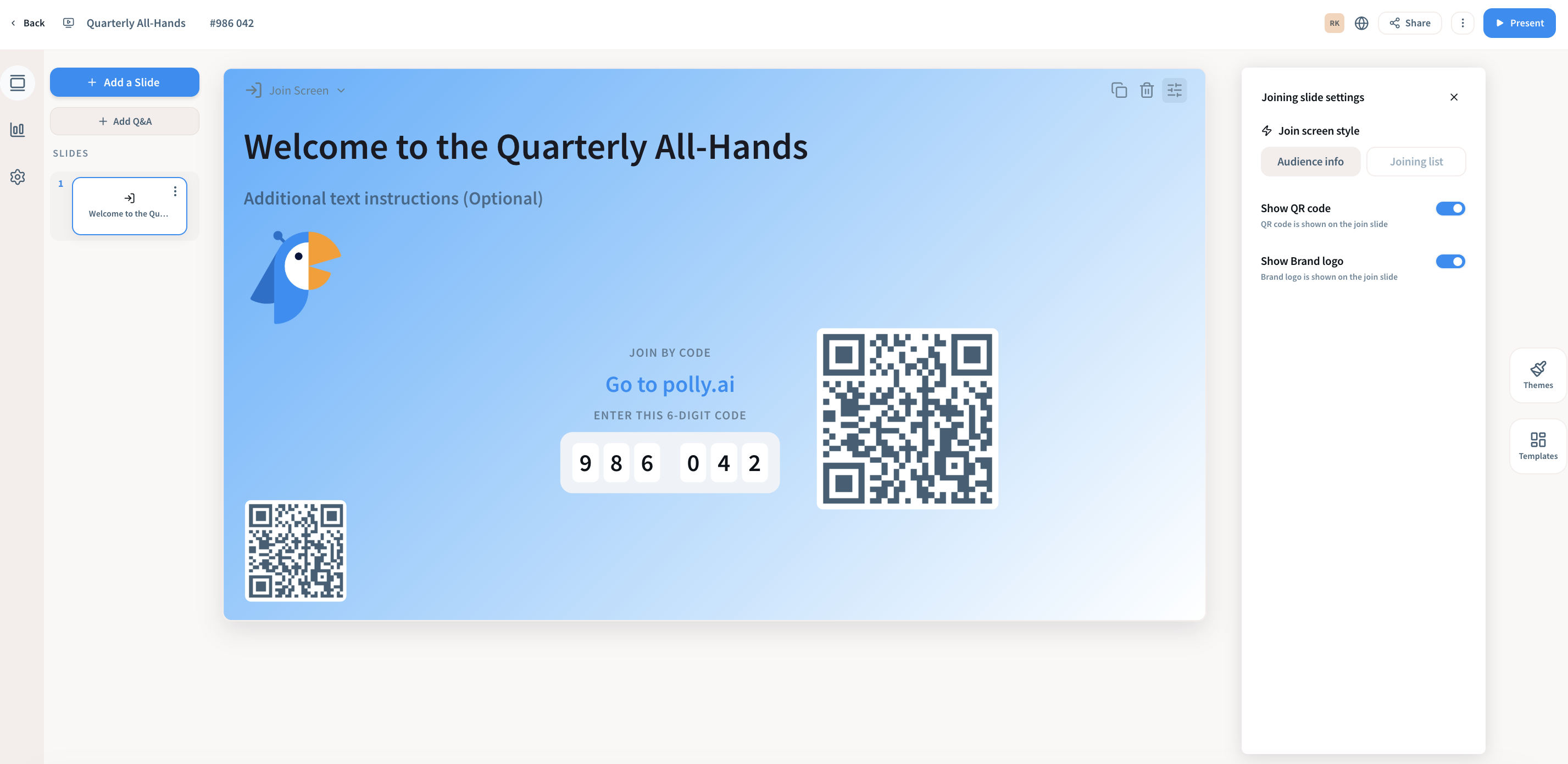
Add slides
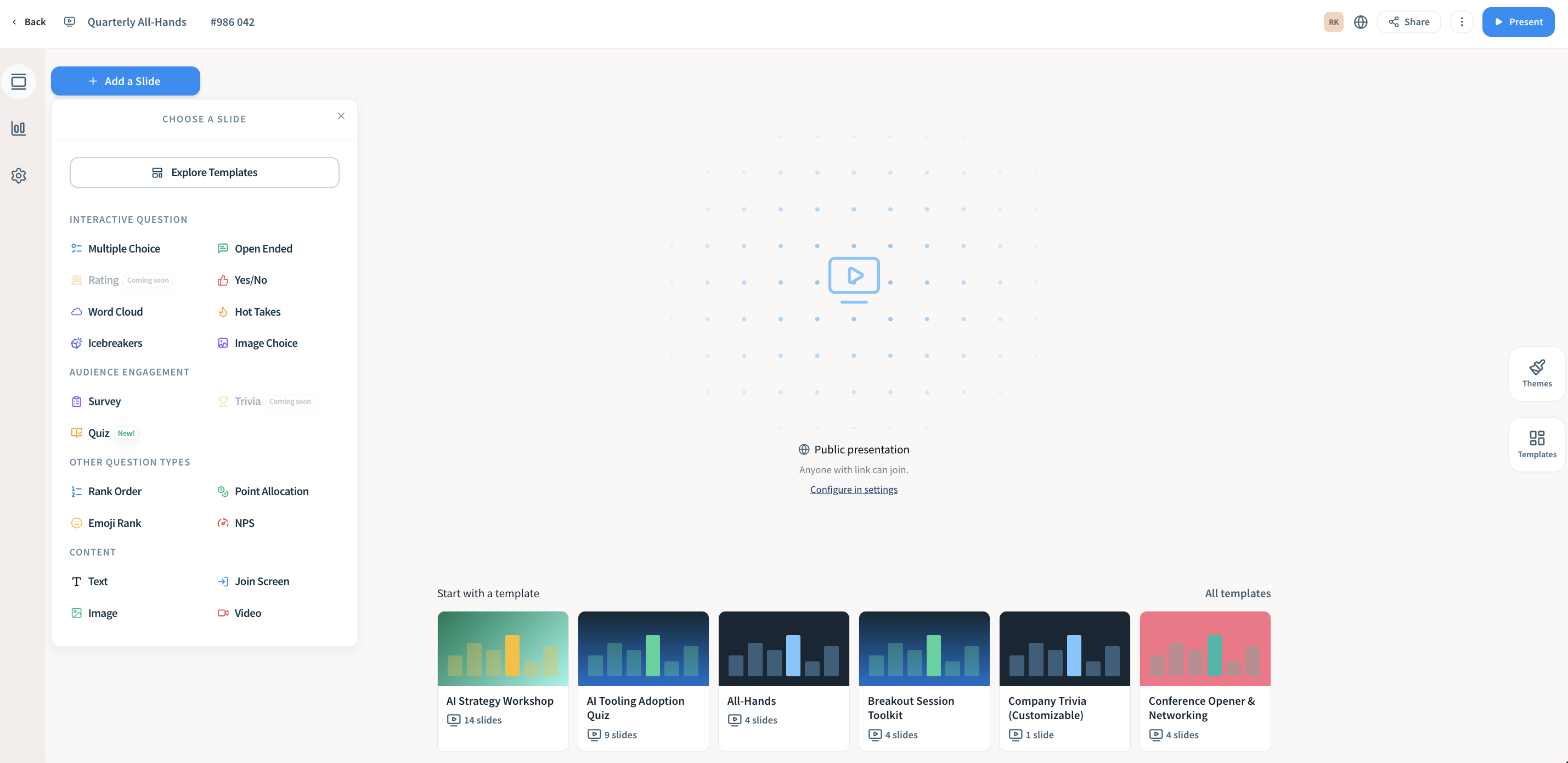
Click Add a Slide and pick a slide type. Your new slide opens on the canvas, with its settings on the right.
|
Slide type |
What it's for |
|---|---|
|
Multiple Choice |
Pick one or more answers from a list |
|
Yes/No |
Quick yes/no. Can also be set to Agree/Disagree or True/False |
|
Image Choice |
Multiple choice with images as the answers |
|
Open Ended |
Free-text answers |
|
Word Cloud |
Short answers shown as a live word cloud |
|
Rating (Coming soon) |
Numeric scale |
|
Emoji Rank |
Emoji or star scale, 2–10 choices |
|
Rank Order |
Put options in order of preference |
|
Point Allocation |
Split a set number of points across options |
|
NPS |
Net Promoter Score on a 0–10 scale |
|
Hot Takes |
Quick reactions to a statement |
|
Icebreakers |
Warm-up questions to get people talking |
|
Quiz |
Scored questions with a leaderboard |
|
Trivia |
A game-style fun quiz |
|
Survey |
A set of questions answered in order |
|
Join Screen |
Join code, QR code and who's joined |
|
Text |
A heading or text slide, no responses |
|
Image |
A full-screen image with a caption |
|
Video |
An embedded YouTube or Vimeo video |
Add Q&A
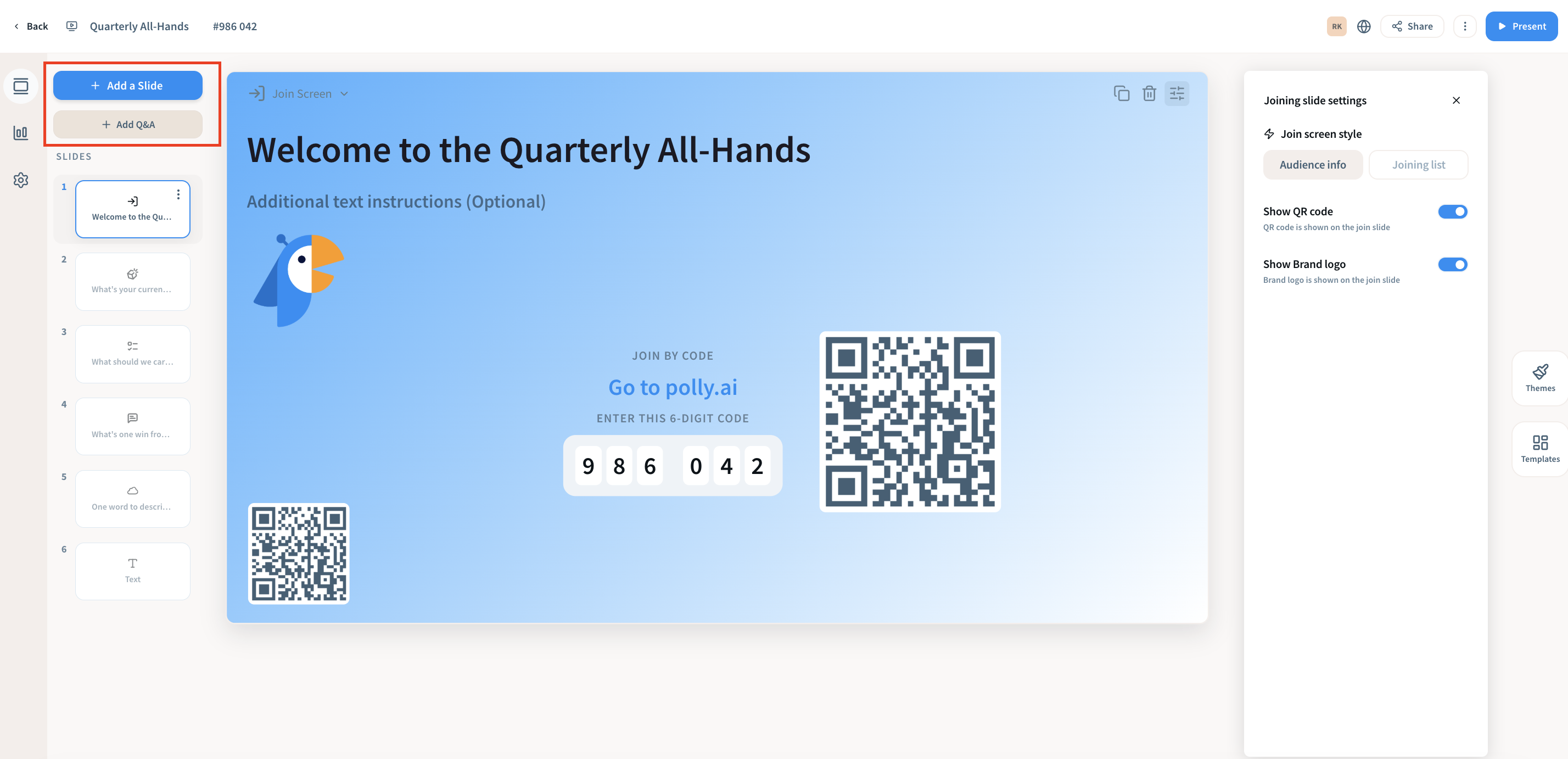
Click Add Q&A below the Add a Slide button. A presentation can have one Q&A, and you can move it anywhere in the deck. Your audience can send in questions while the Q&A is open. If upvoting is on, they can also upvote the questions they most want answered.
Moderate questions
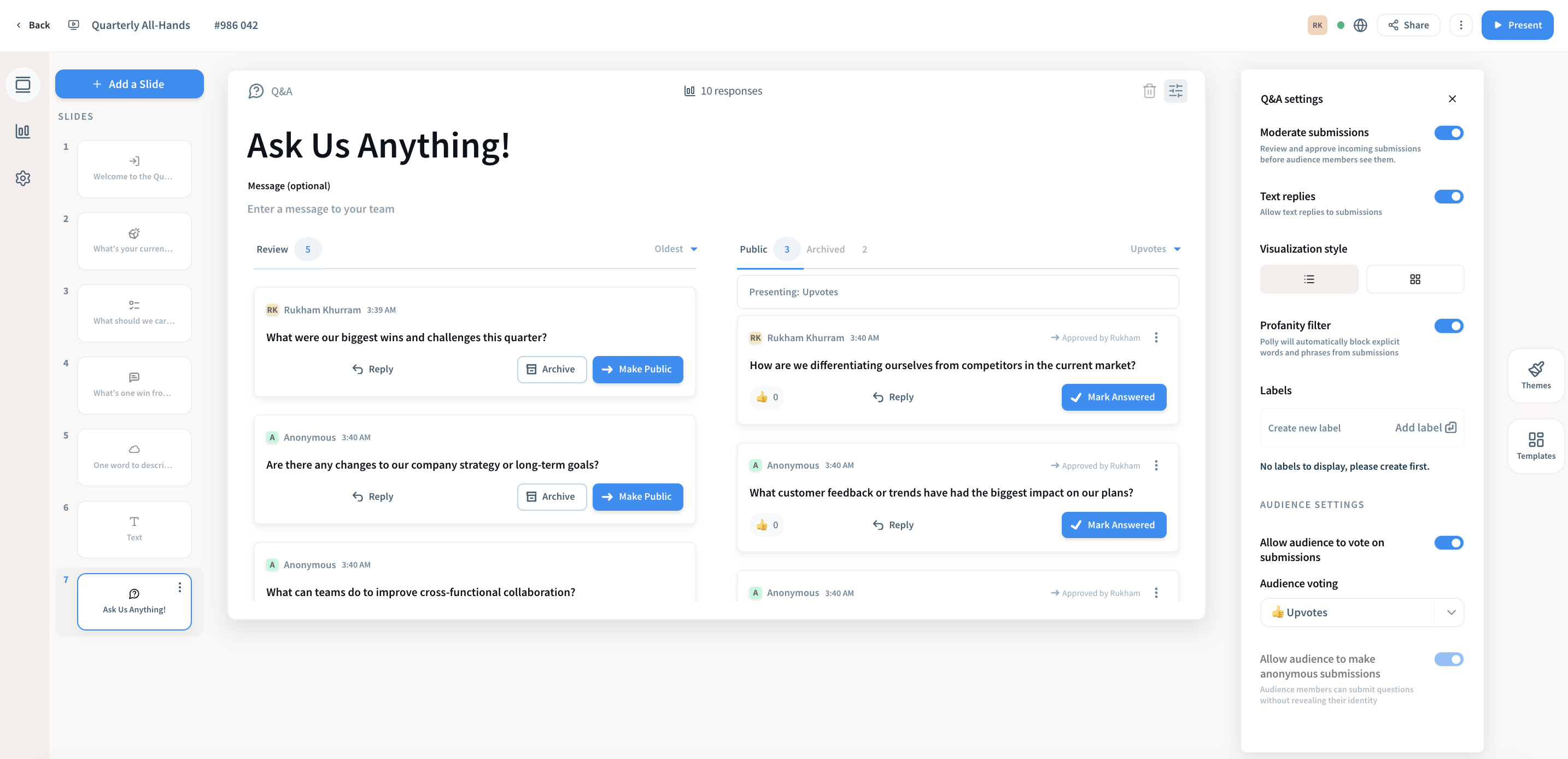
Open the Q&A’s moderation view to manage questions as they come in:
- Make Public to show a question on screen
- Mark Answered once you’ve covered it
- Reply to answer in writing (public or private)
- Archive questions you don’t want to show
Owners and Editors can moderate, so a colleague can handle questions while you present. To screen out offensive language, turn on the profanity filter in the Q&A settings.
💡Tip: Ask questions from any slide. Your audience doesn’t have to wait for the Q&A slide. They can open Q&A at any point in the session.
Settings
Set things up once for the whole presentation, and every slide follows. You can still change a setting on a single slide when you need to.
Presentation settings are split into three tabs:
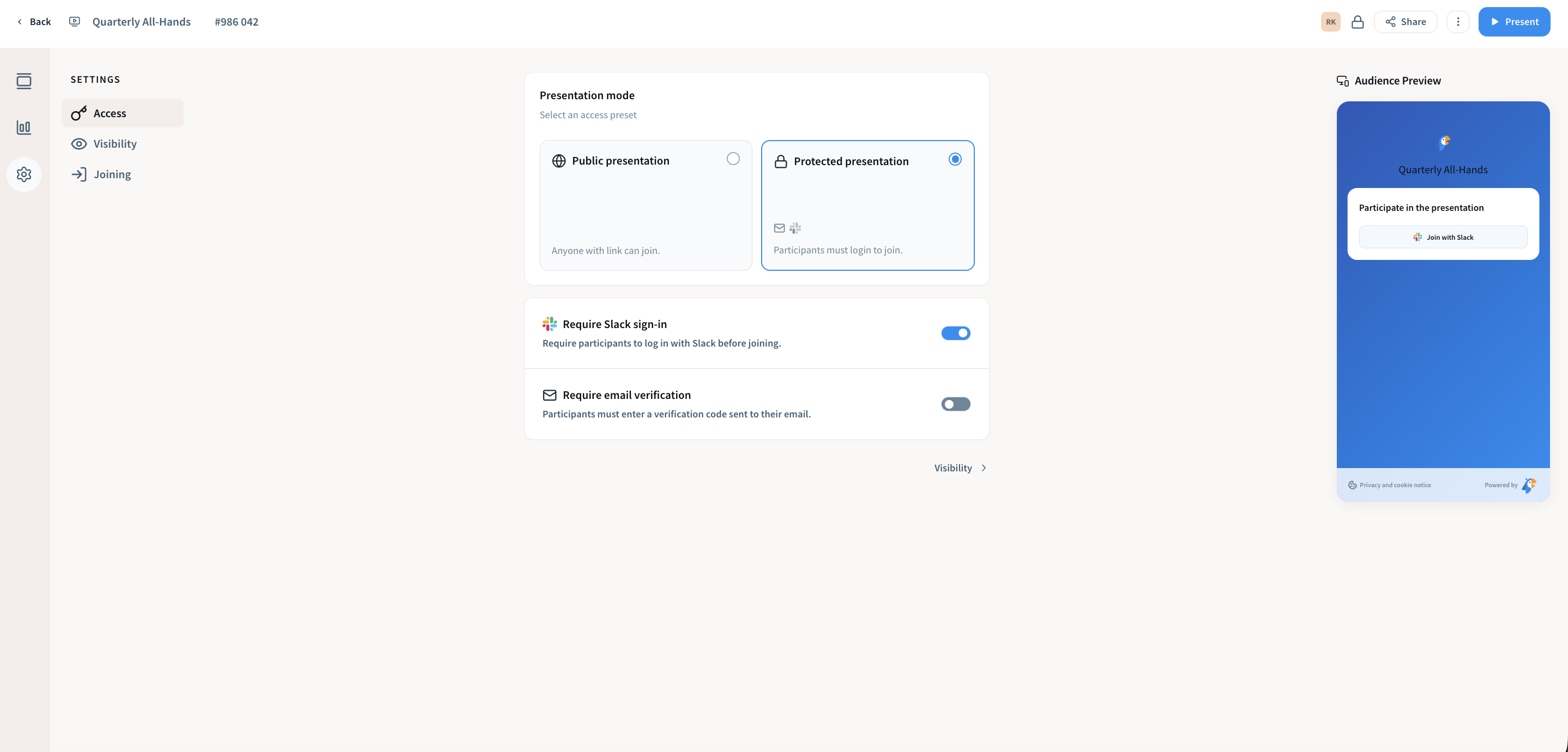
- Access: who can join and how they identify themselves.
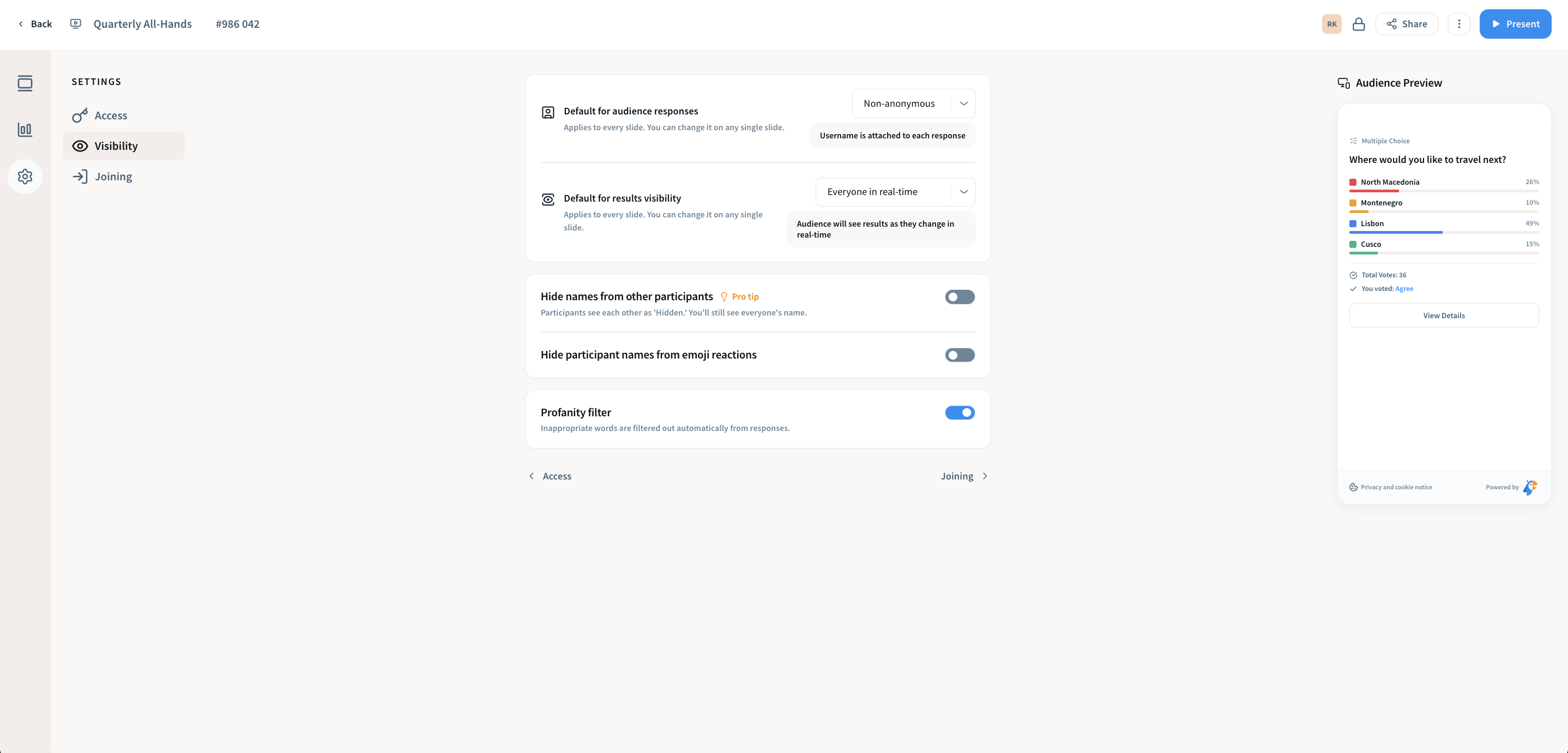
- Visibility: defaults for anonymous responses and when results are shown.
- Joining: which join methods are on (QR code, join code) and custom fields people fill in when they join, which you can mark as required.
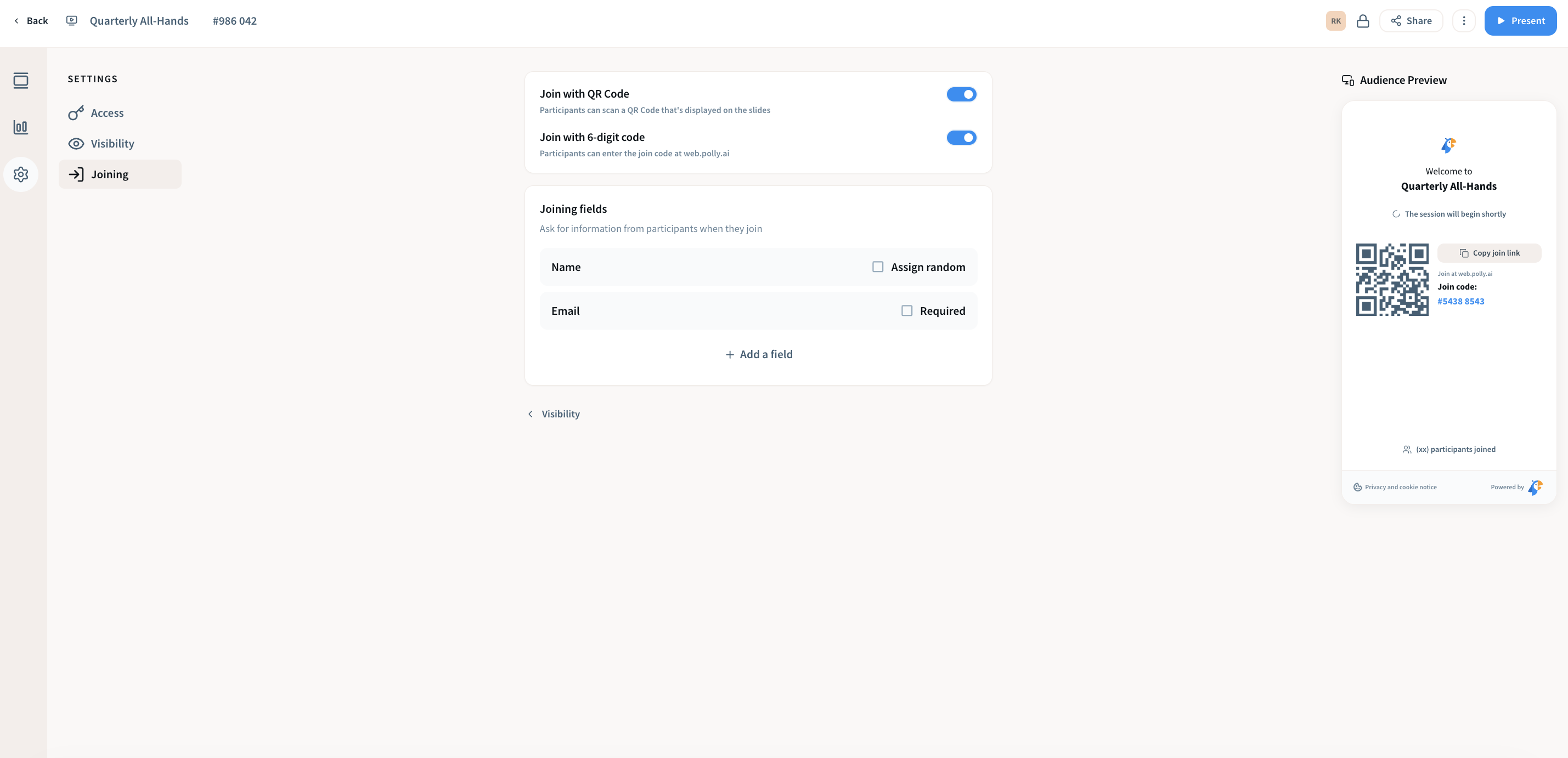
Settings marked as defaults apply to every slide but can be changed per slide.
Public or Protected
Under Access, choose how people join:
- Public: anyone with the join code, QR code or link can join. Each person gets a random display name they can change.
- Protected: people log in via Slack or email to join. Use this for training, internal meetings or anything where you need to know who responded.
When you choose Protected, you also decide how people sign in and who’s allowed in.
- Sign-in method: let people sign in with Slack, with their email, or with either one. Email sign-in sends them a one-time code to enter.
- Allowed domains: add your company’s domain (for example, yourcompany.com) so only people with an email at that domain can join. You can add more than one domain.
- Allowed email addresses: add specific people by email, for example a guest speaker or a contractor outside your domain.
Showing results
Use the results visibility setting to decide when your audience sees results. Reveal results on click keeps results hidden until you move forward: press Next once to show the results, then Next again to go to the next slide.
Theme
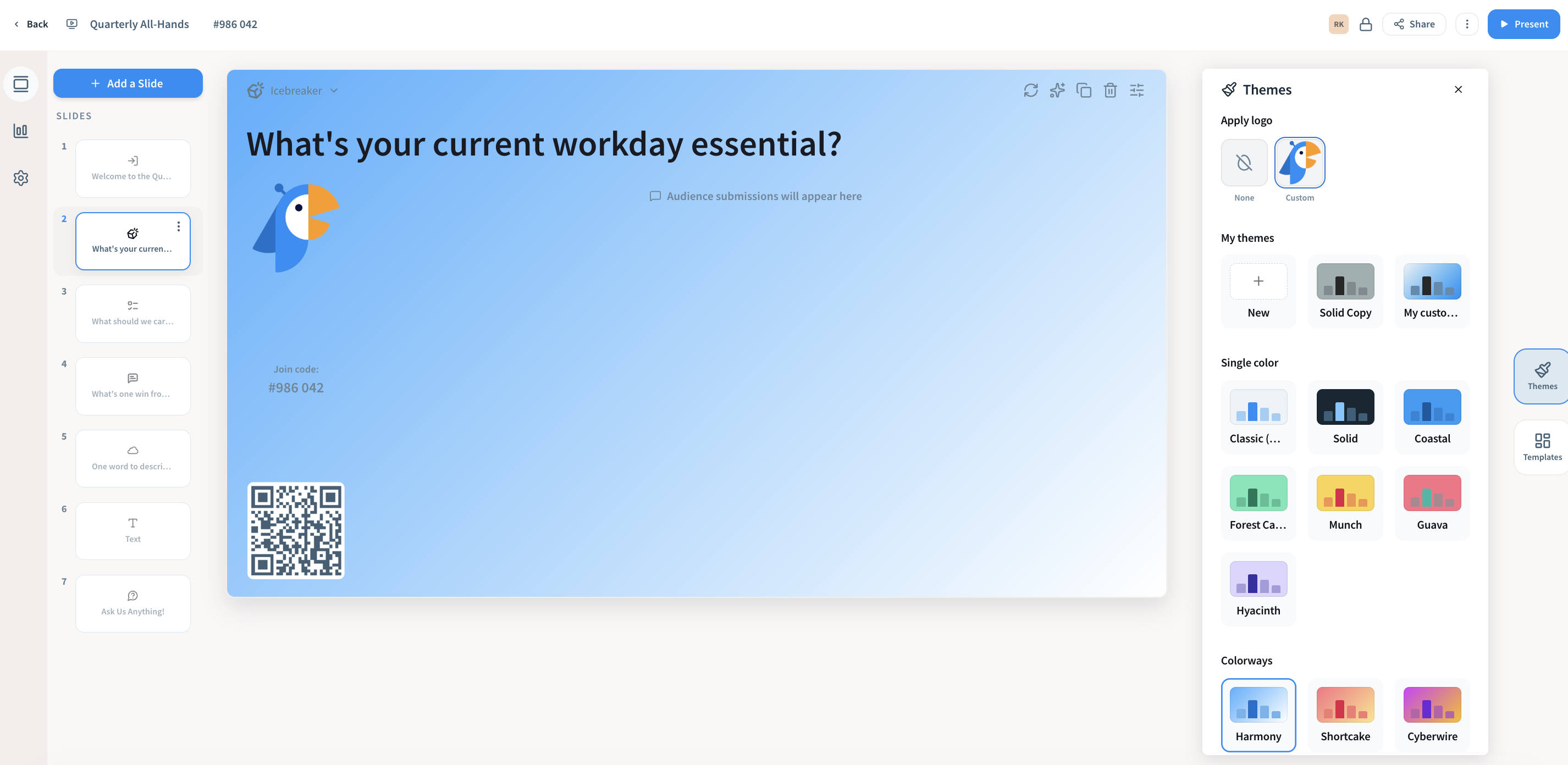
Pick a theme to set colors, fonts and your logo. The theme applies to both what you present and what your audience sees on their devices. It also travels with the presentation, so collaborators who present it get the same look without setting anything up.
Present
Click Present in the editor to start. Your presentation opens full screen, and your audience’s devices follow along as you move through the slides.
What’s on screen
- Join details: the join URL and code are at the top of every slide, and the QR code sits in the corner, so people can join at any point in the session.
- Total votes: a live count of responses to the current slide.
- Your logo, from the presentation’s theme.
Presenter controls
The bar along the bottom has everything you need to run the session:
| Control | What it does |
|---|---|
| Previous / Next | Move between slides |
| Jump to slide | Click the slide number (for example, 3/7) to go straight to any slide |
| Hide results | Hide or show results on screen, for example to collect answers before revealing them |
| End voting | Stop taking answers on the current slide |
| Reset results | Clear the slide’s responses and start it over |
| QR code | Show or hide the QR code on screen |
| Keyboard shortcuts | See the shortcuts for running your presentation |
| Chart style | Switch results between a vertical and a horizontal bar chart |
| Q&A | Open Q&A from any slide, without leaving your place in the deck |
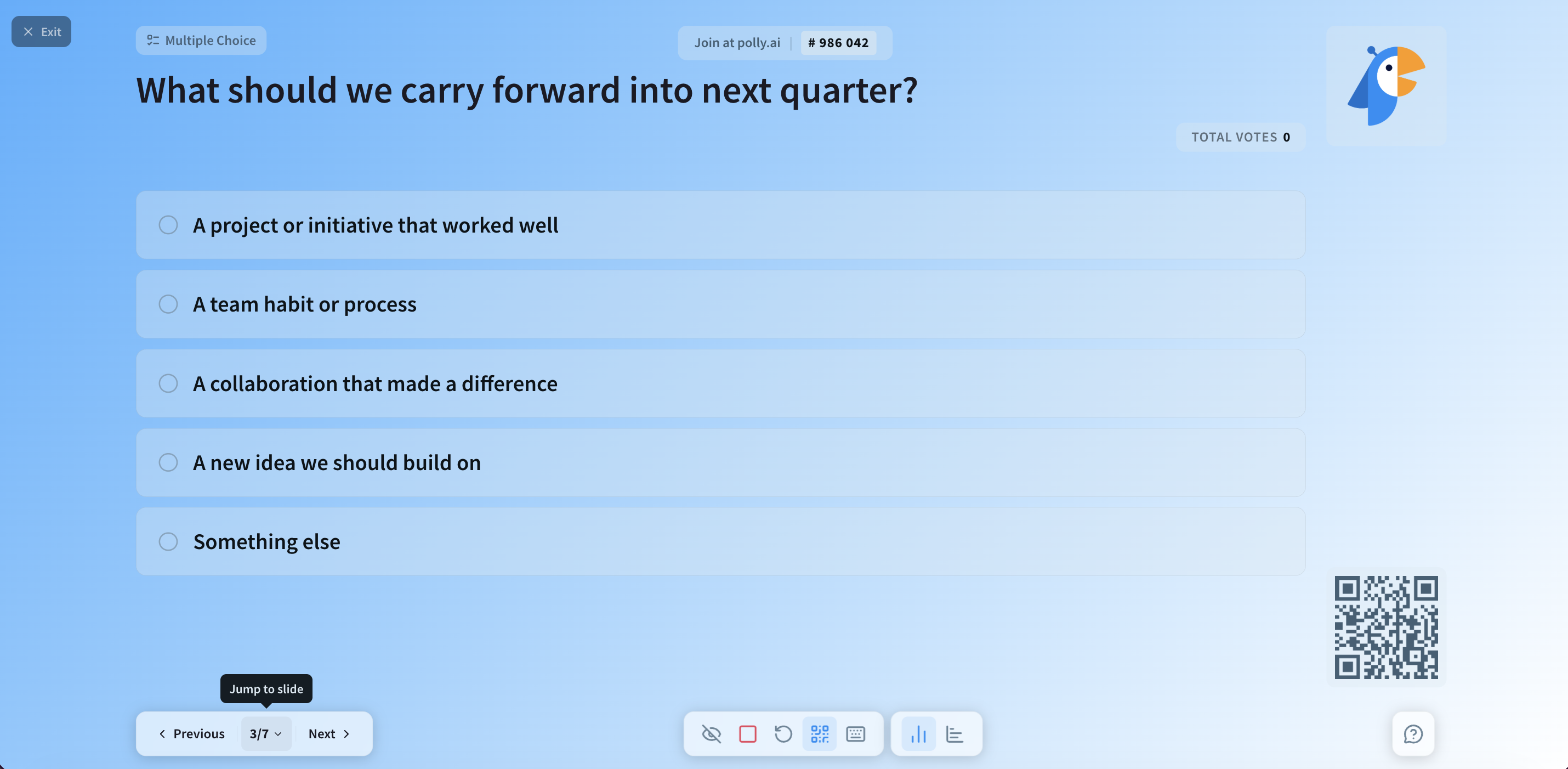
Click Exit to stop presenting.
Results
Results update live in the editor and on screen as responses come in. For the full picture, open the Results page. The fastest way there is the submission count at the top of any slide in the editor, which opens that slide's results directly.
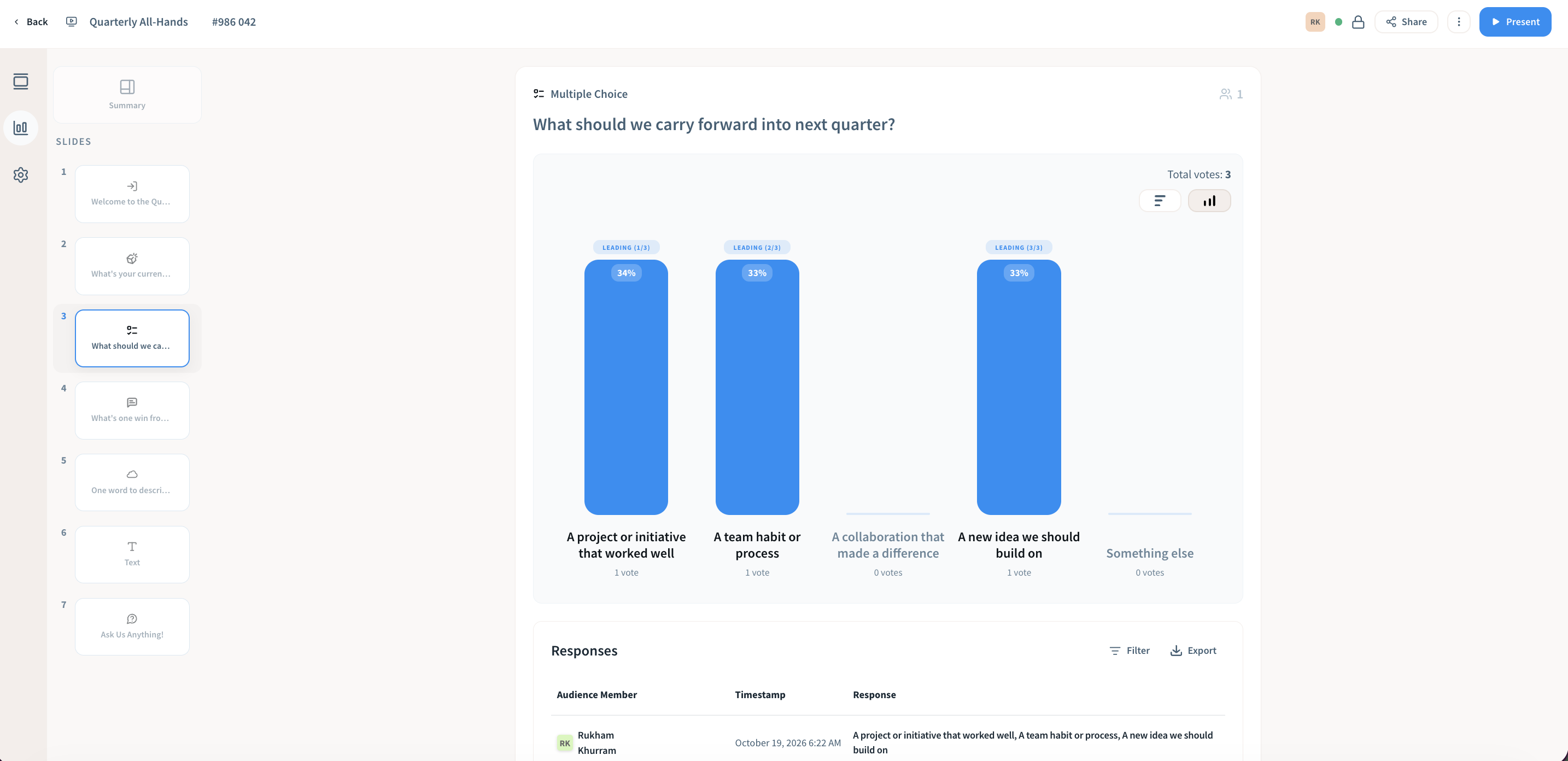
On the Results page:
- The Summary at the top gives you an overview of the session.
- Each slide has its own results, in the same order as your presentation.
- Quizzes, Trivia and Surveys have three tabs: Overview, Questions and Audience.
Exports
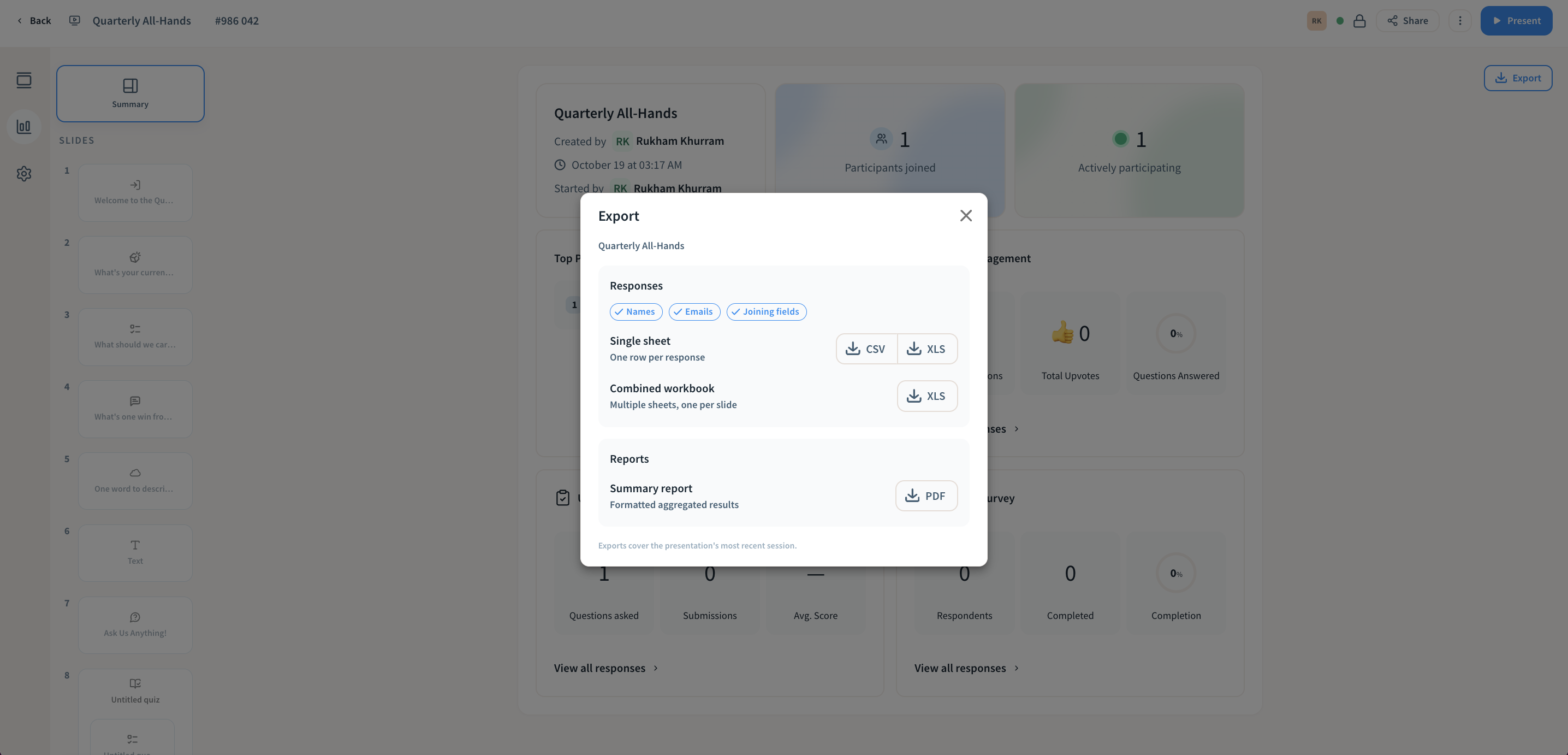
Click Export on the Results page to download your presentation’s results.
Responses
Choose which participant details go into the file by switching Names, Emails and Joining fields on or off. Then pick a format:
- Single sheet: one row per response, as CSV or XLS.
- Combined workbook: an XLS file with a separate sheet for each slide.
Reports
- Summary report: a formatted PDF of the overall results, ready to share with people who weren’t there.
Collaborators
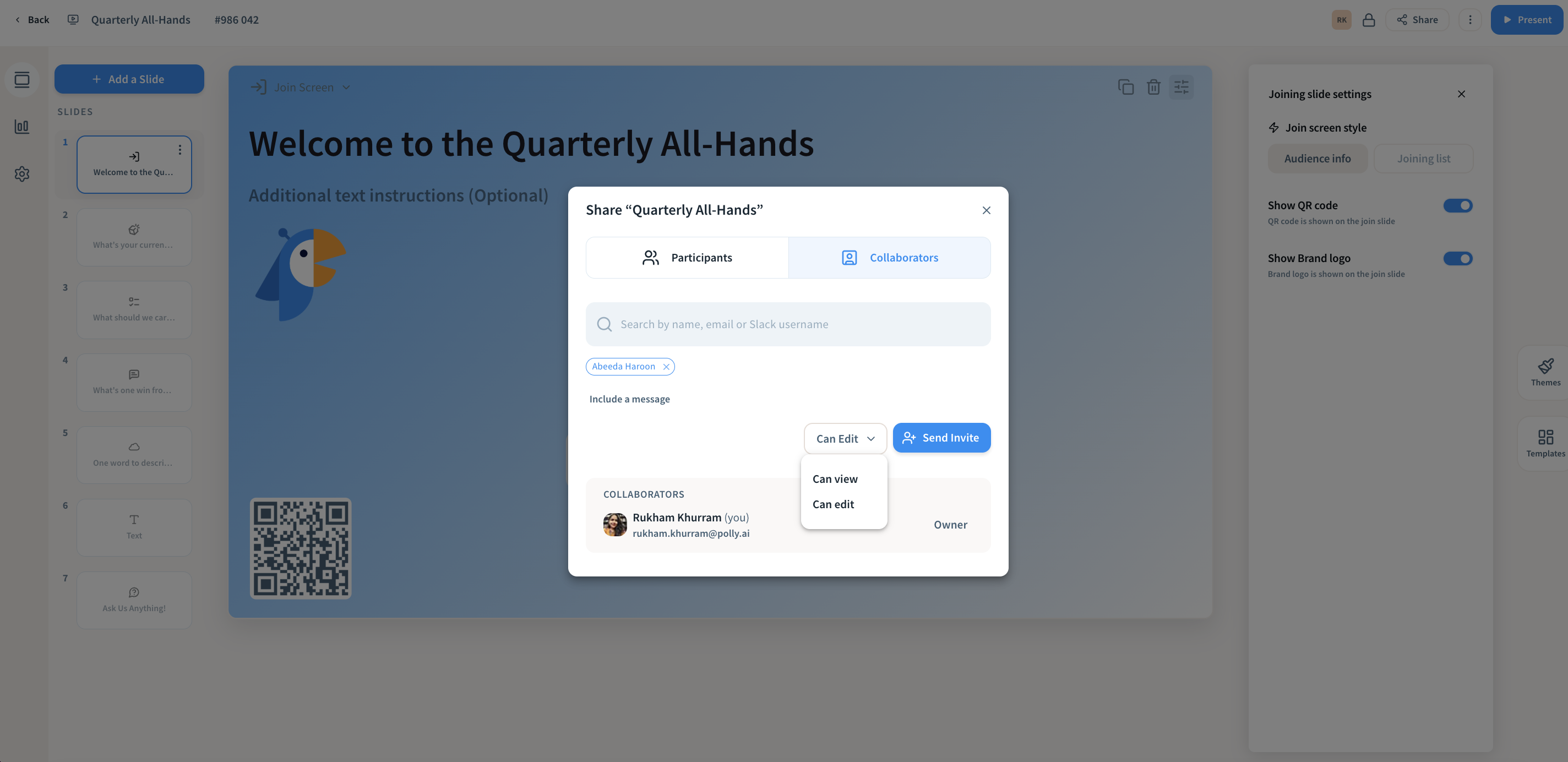
Click Share in the editor and open the Collaborators tab.
- Search for people by name, email or Slack username, and add them.
- Add a message if you want.
- Choose Can edit or Can view, then click Send Invite.
Everyone who has access is listed under Collaborators, along with their role.
| Role | Can do |
|---|---|
| Owner | Everything, including deleting the presentation |
| Can edit | Add and edit slides, change settings, present, and create reports and exports |
| Can view | View and present, and download reports and exports someone has already created |
Roles work the same everywhere, so someone who can view in the web app can also view in PowerPoint and Google Slides.
You and your collaborators can work in the editor at the same time. You’ll see who else is in the presentation at the top of the screen. If someone is typing in a field, it’s locked for everyone else until they click out.
Post in Slack
Share your presentation in a Slack channel so people can find it and join from where they already work. In the Share window, click Post in Slack, then:
- Pick a public or private channel (for a private channel, Polly needs to be invited to it first).
- Add a message if you want.
- If your presentation has Q&A, tick the checkbox to post the Q&A in Slack too.
- Check the preview and post.
Good to know
- Your audience only sees live slides while you're presenting. When you stop, they see a waiting message until you start again.
- Hide a slide you don't want to show this time without deleting it. Hidden slides are skipped when you present.
- Share a single slide with its direct link to collect answers before or after the session, even when you're not presenting.
- Slides with responses are locked. Once a slide has responses, or while you're presenting, you can't delete it or change its type. To start that slide over, use Reset Results.
✏️Note: Planning a large event? Contact us ahead of time and we’ll help make sure everything runs smoothly.