
Overview
When you click Present, your presentation opens full screen and your audience can join with the join code, link or QR code. Their screens follow yours: when you move to a new slide, it appears on their device automatically.
This guide covers running the session itself. To build a presentation first, see Polly Presentations
Before you go live
A few minutes of prep makes the session run smoothly.
- Do a test run. Click Present and join from your phone, so you see exactly what your audience will see.
- Send the join details ahead of time. In Share, copy the join link or download the QR code and add it to your calendar invite or agenda.
- Post it in Slack. Use Post in Slack in the Share window to share the presentation in a channel, and tick the checkbox to post the Q&A too if your presentation has one.
- Line up a Q&A moderator. Anyone who can edit the presentation can moderate questions, so a colleague can handle them while you present.
- Check your settings. Make sure Access (Public or Protected), results visibility and anonymity are set the way you want before people start answering.
- Hide slides you won't use this time. Hidden slides are skipped when you present, and you don't have to delete them.
✏️Note: Planning a large event? Contact us ahead of time and we'll help make sure everything runs smoothly.
Start presenting
Click Present in the top-right corner of the editor. Your presentation opens full screen on the first slide that isn't hidden.
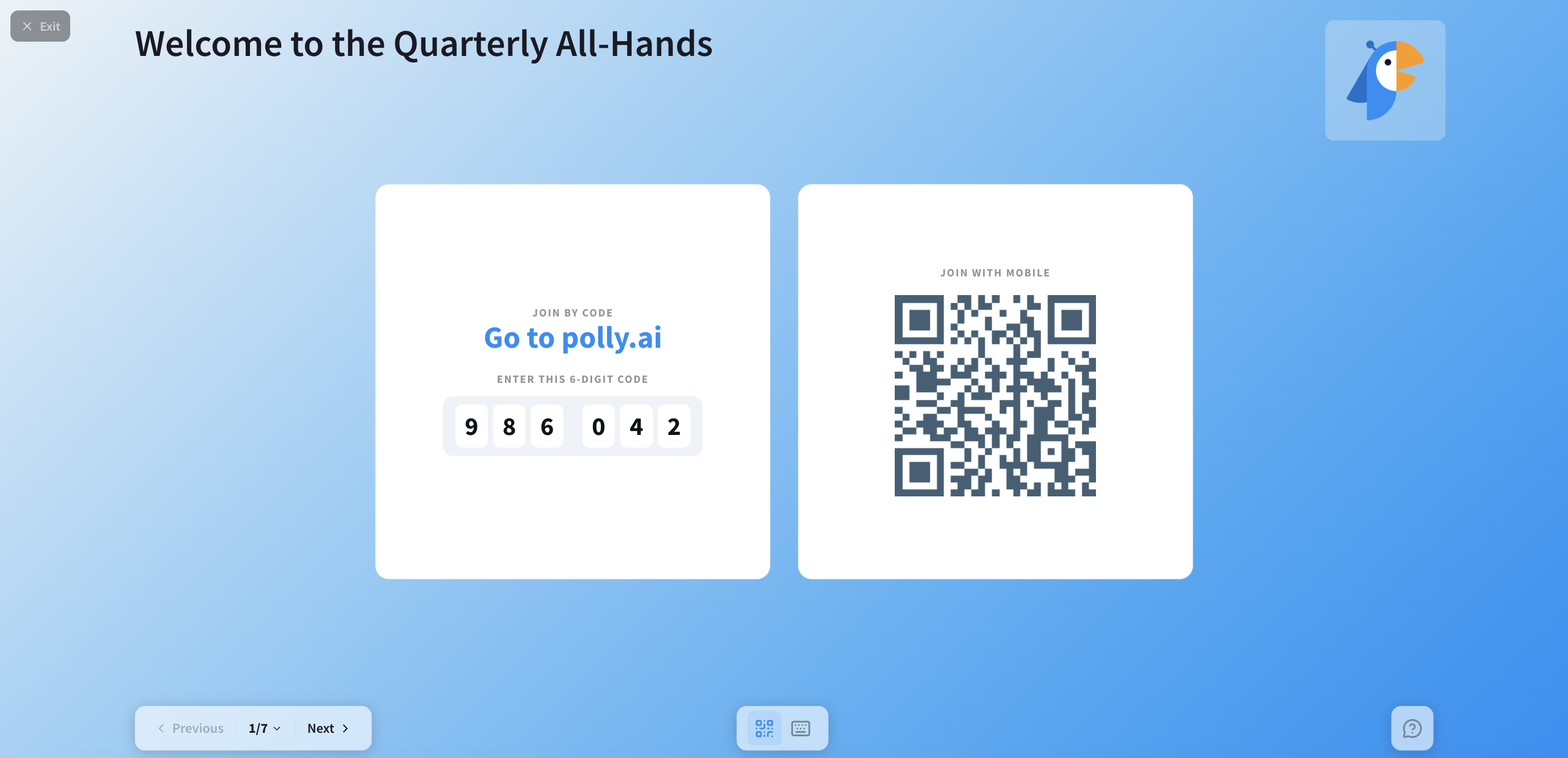
Most presentations open on the Join Screen. It shows the join code, QR code and the people joining in real time, so you can wait for the room to fill before you begin. In the Join Screen's settings, you can choose its style (Audience info or Joining list) and turn Show QR code and Show Brand logo on or off.
How your audience joins
Your audience can join three ways, all leading to the same place:
- Scan the QR code
- Go to polly.ai and enter the join code
- Open the join link you shared with them
If your presentation is Protected, people sign in with Slack or email before they join.
The join URL and code stay at the top of every slide, so latecomers can join at any point.
Run the session
Everything you need is on screen while you present.
What's on screen
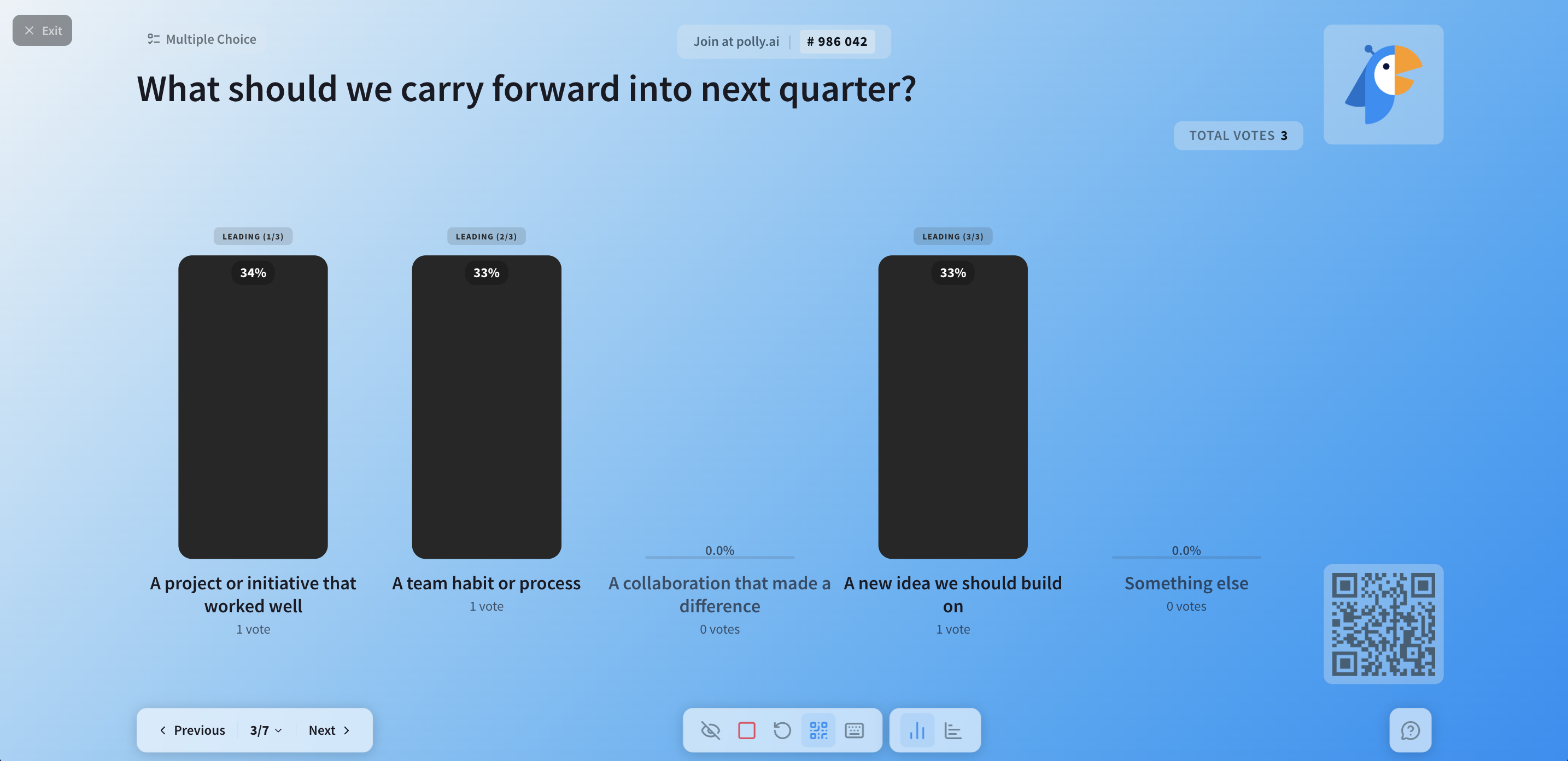
- Join details: the join URL and code at the top, and the QR code in the corner.
- Total votes: a live count of responses to the current slide.
- Your logo, from the presentation's theme.
Presenter controls
|
Control |
What it does |
|---|---|
|
Previous / Next |
Move between slides |
|
Jump to slide |
Click the slide number (for example, 3/7) to go straight to any slide |
|
Hide results |
Hide or show results on screen, for example to collect answers before revealing them |
|
End voting |
Stop taking answers on the current slide |
|
Reset results |
Clear the slide's responses and start it over |
|
QR code |
Show or hide the QR code on screen |
|
Keyboard shortcuts |
See the shortcuts for running your presentation |
|
Chart style |
Switch results between a vertical and a horizontal bar chart |
|
Q&A |
Open Q&A from any slide, without leaving your place in the deck |
Revealing results
If Reveal results on click is on, results stay hidden until you move forward: press Next once to show the results, then Next again to go to the next slide. This keeps early answers from swaying everyone else.
Run Q&A live
Your audience can send in questions while the Q&A is open, and upvote the ones they most want answered if upvoting is on. They don't have to wait for the Q&A slide: they can open Q&A at any point in the session.
To show Q&A on screen, move to the Q&A slide or click the Q&A icon in the bottom-right corner of the presenter view. Opening it from the icon keeps your place in the deck.
End the session
Click Exit in the top-left corner to stop presenting. Your audience sees a waiting message until you start again.
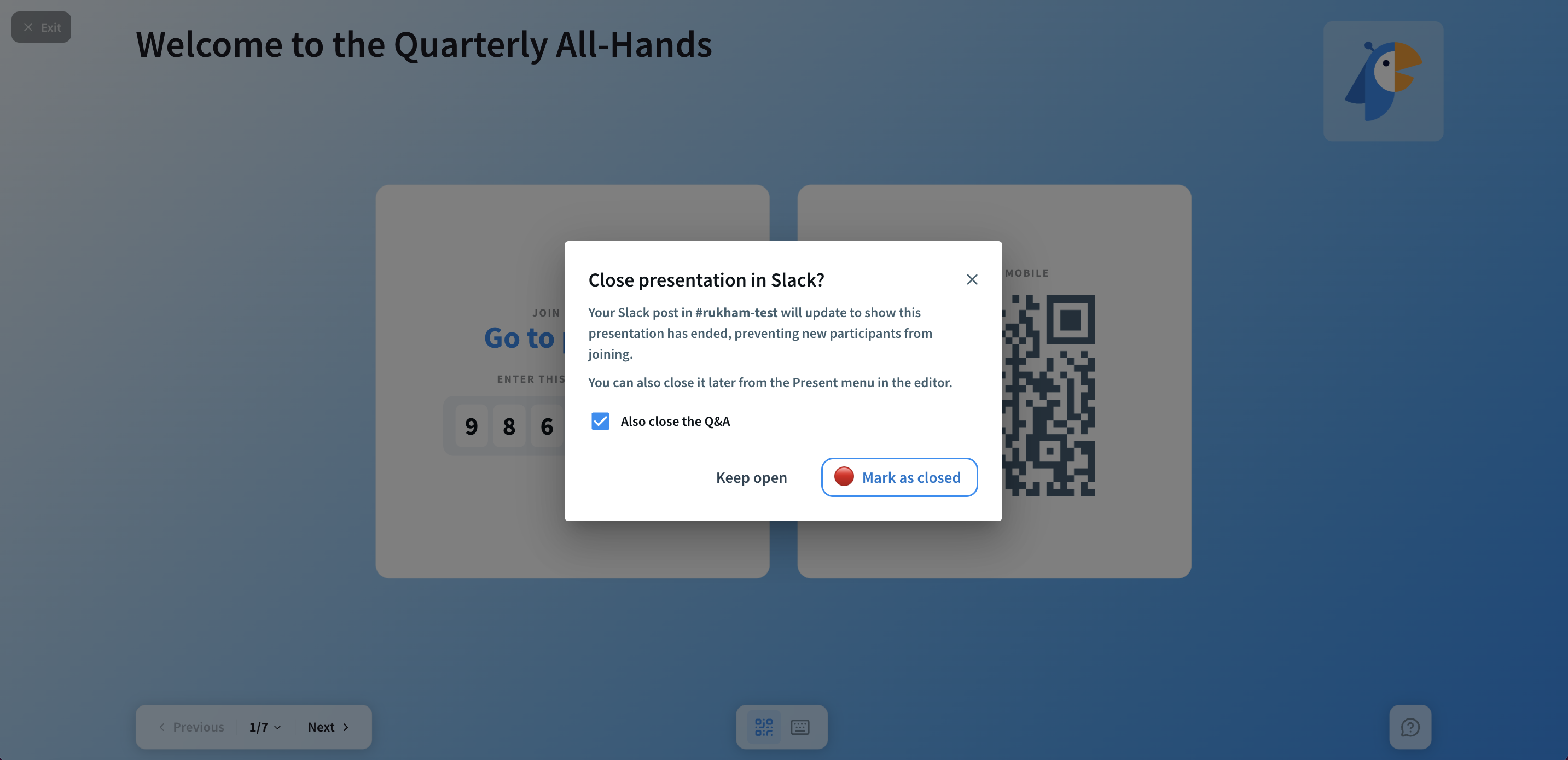
If you posted the presentation in Slack, Polly asks whether to close it there too:
- Click Mark as closed to update your Slack post to show the presentation has ended. New participants won’t be able to join from it. Keep Also close the Q&A ticked to close the Q&A at the same time, or untick it to leave the Q&A open.
- Click Keep open if you plan to keep going later. You can close it anytime from the Present menu in the editor.
See what your audience said
Results update live as responses come in. After the session, open the Results page for the full picture.
Good to know
- Your audience only sees live slides while you're presenting. When you stop, they see a waiting message until you start again.
- Slides with responses are locked. Once a slide has responses, or while you're presenting, you can't delete it or change its type. To start that slide over, use Reset results.
FAQ
My audience joined but can't see the slide. Check that you're presenting. Your audience only sees slides while a presentation is running.
Can I moderate Q&A while someone else presents? Yes. Anyone who can edit the presentation can open the moderation view from their own device and manage questions during the session.
I exited by mistake. Do I lose my audience? No. Click Present again and your audience picks up where you left off.