
Overview
Share a presentation and everyone you invite works from the same copy: the same slides, settings and theme, and the same results. One person can build it, a teammate can review it, and someone else can present it, all without setting anything up twice.
Access works the same everywhere. Whatever role you give someone applies in the web app, PowerPoint and Google Slides.
Roles
|
Owner |
Editor |
Viewer |
|
|---|---|---|---|
|
Present |
Yes |
Yes |
Yes |
|
See results |
Yes |
Yes |
Yes |
|
Export Results |
Yes |
Yes |
No |
|
Add and edit slides |
Yes |
Yes |
No |
|
Change settings and theme |
Yes |
Yes |
No |
|
Invite and manage collaborators |
Yes |
Yes |
No |
|
Delete the presentation |
Yes |
No |
No |
Editor is selected by default when you invite someone. Choose Viewer for people who only need to present, like a speaker or a facilitator running your session. They'll get your slides, settings and branding exactly as you set them up.
Each presentation has one Owner: the person who created it.
Share a presentation
- Open your presentation and click Share.
- Go to the Collaborate tab.
- Enter one or more email addresses, or pick from the suggested people you've worked with recently.
- Choose a role.
- Click Send invite.
Each person gets a Slack notification with a link to the presentation, and they’re added to your collaborators list right away.
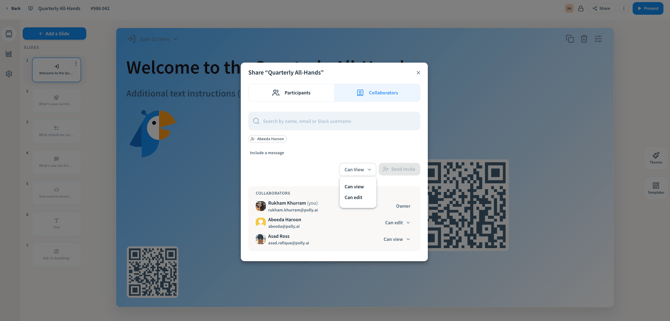
Inviting people with different roles? Everyone in one invite gets the same role. Send one invite for Editors and another for Viewers.
Where shared presentations show up
Presentations shared with you appear in your Presentations list right away, alongside your own.
Change or remove access
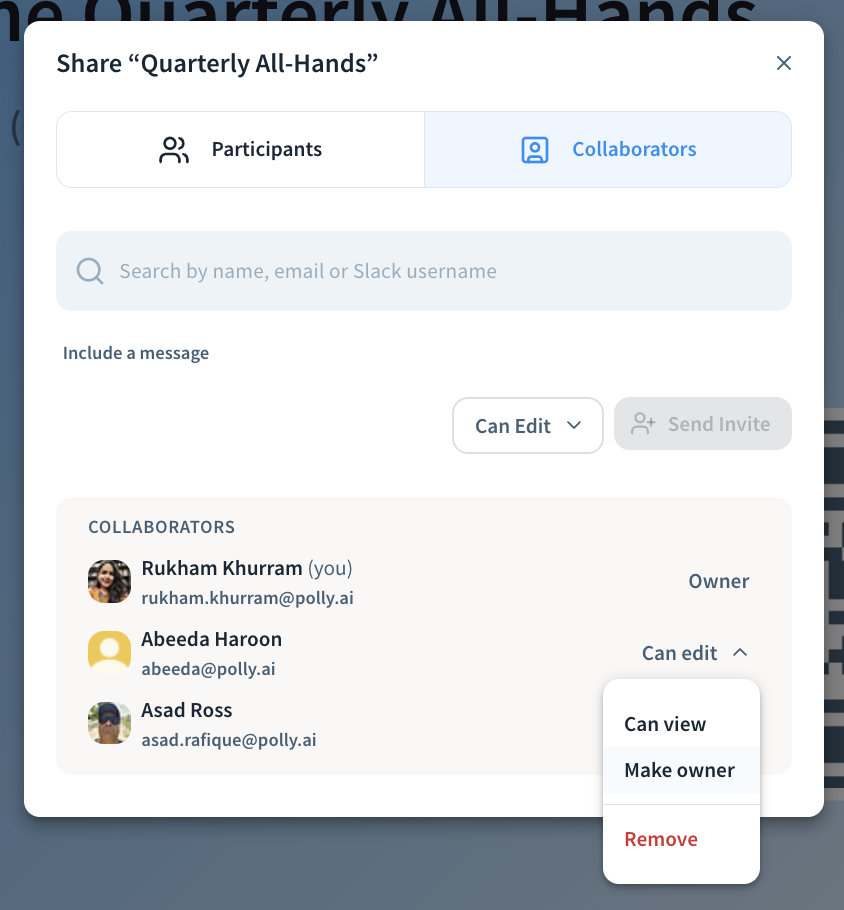
Open Share → Collaborators to see everyone who has access. Click the role next to someone’s name to change it:
- Choose Can edit or Can view to change what they can do.
- Click Remove to take away their access to the presentation.
- Click Make owner to transfer the presentation to them. A presentation has one owner, so you’ll become an editor once you confirm. You’ll no longer be able to manage collaborators or delete the presentation, and the transfer can’t be undone.
Working together in the editor
You and your collaborators can work in the same presentation at the same time.
- See who's there: avatars at the top of the editor show who else has it open.
- No overwriting: when someone is typing in a field, it's locked for everyone else until they click out. Hover over it to see who's editing.
- Changes appear on their own: new slides, reordering and settings changes show up for everyone automatically. There's nothing to refresh.