
Overview
The Polly web app lets you sign up with your email and run pollys without Slack. Every polly gets its own join link, join code and QR code, so people can respond from any browser, on any device. If your team uses Slack, you can connect it too and post pollys straight to a channel.
Available Polly Types
You can create four kinds of pollys:
|
Polly |
What it's for |
|---|---|
|
Question |
A single question, such as multiple choice, open ended or a word cloud |
|
Survey |
A set of questions answered in order |
|
Quiz |
Scored questions with a leaderboard |
|
Q&A |
Questions from your audience, which you moderate |
You can also create presentations, which bring several pollys, content slides and Q&A together into one live session with a single join code. See Polly Presentations.
Share a polly for people to answer in their own time, or present it live and watch the results come in.
Get started
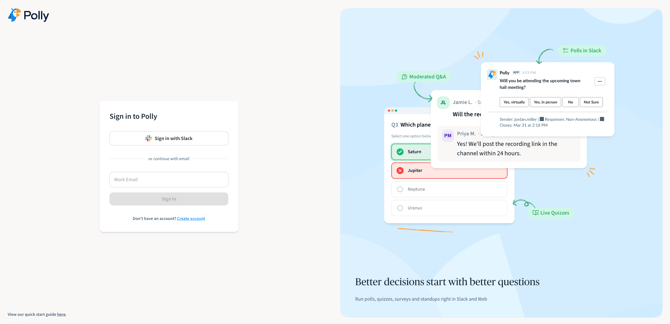
- Go to app.polly.ai and sign up with your email.
- Enter the code we send to your inbox to verify your email.
- You land on your dashboard, ready to create your first polly.
💡 Tip: The first time you sign in, the code may land in your spam or junk folder. If you don't see it in your inbox, check there.
Create a polly
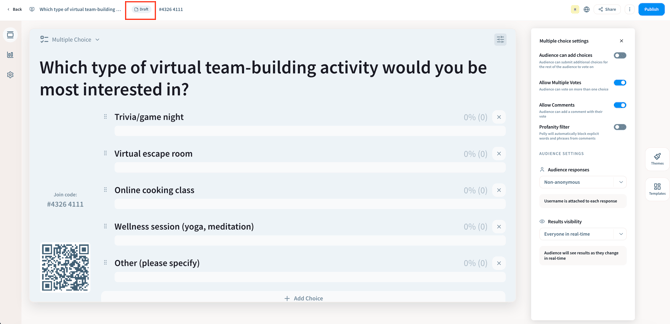
- Click Create in the top bar and choose Question, Survey, Quiz, Q&A or Presentation. You can also start from the sidebar: open a polly type, such as Questions or Surveys, and click its create button (for example, Create Question). For a Question, pick its type, such as Multiple Choice, Yes/No, Image Choice, Open Ended or Word Cloud.
- Choose Create from scratch, or click the arrow next to the create button and choose Use a template
- Add your questions in the editor. You can drag to reorder them or change a question’s type from its type chip. For Hot Takes and Icebreakers, you can also use Generate with AI to create them for you.
New pollys start as drafts, so you can build without anyone seeing them.
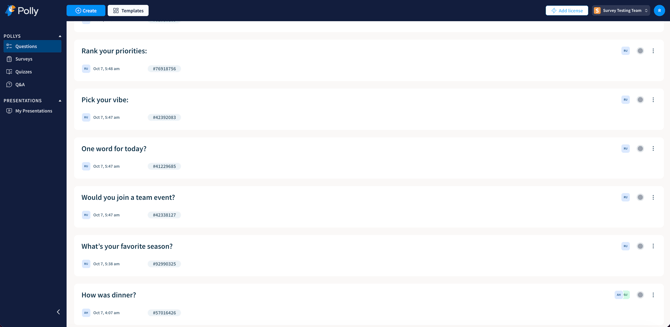
Your pollys are listed in the sidebar under Pollys: Questions, Surveys, Quizzes and Q&A. On each list, filter by All, Active or Past, or search by name. Click ⋮ on a polly to duplicate it, delete it or copy its link/code. Presentations are under Presentations → My Presentations in the sidebar.
Templates
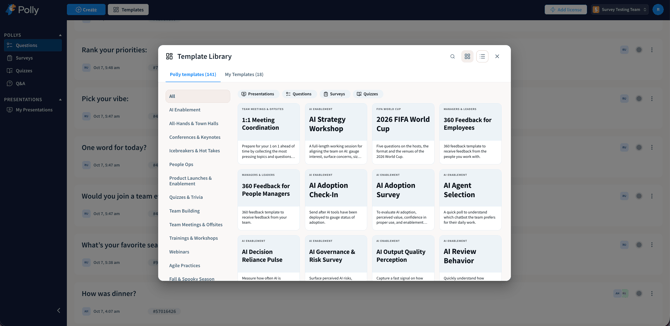
Click Templates in the top bar to browse ready-made pollys, or save your own: in the editor, click Save as template to reuse a polly later.
Publish your polly
When your polly is ready, click Publish in the top bar and choose when it opens and closes:
- Start: Open now, or Schedule a date and time.
- Close: Close after a set time (7 days by default), or Close at a specific date and time.
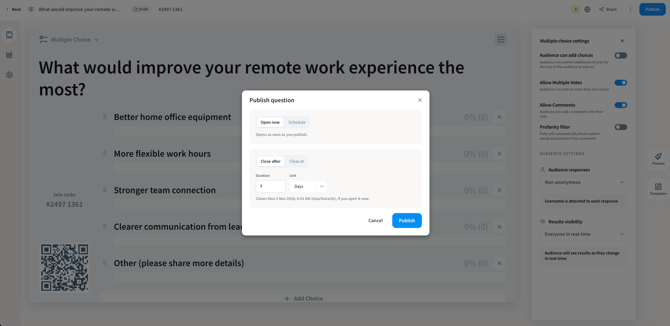
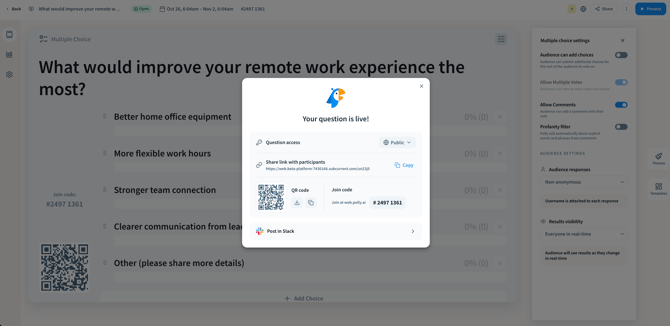
Once it's published, Polly shows your join link and QR code so you can share it straight away.
The status at the top of the editor shows where your polly is: Draft, Scheduled, Open or Closed.
Edit a published polly
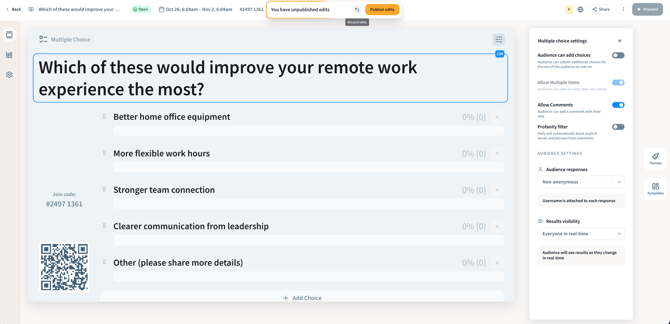
You can keep editing after you publish. Your changes aren't shown to participants until you publish them, so nobody sees a half-finished edit.
- Make your changes in the editor. A bar at the top says You have unpublished edits.
- Click Publish edits to share them, or Discard to drop them. If you discard, your polly goes back to how it was when you last published it.
- If your polly already has responses, choose whether to keep them or start fresh with Reset and publish.
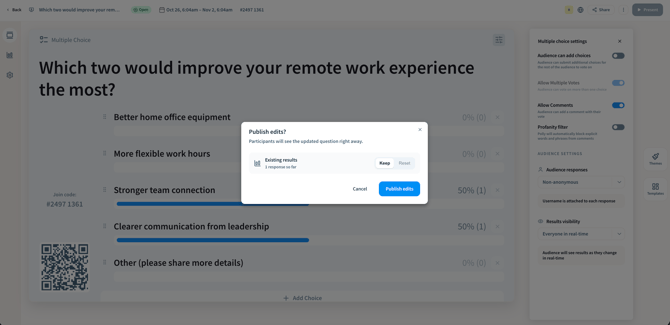
💡 Note: Until you publish, participants, the join link and any Slack post keep showing the last published version. Schedule and access settings are the exception: they save right away.
Editing a closed polly
If you click Publish edits in the editor to save your changes. Your polly stays closed.
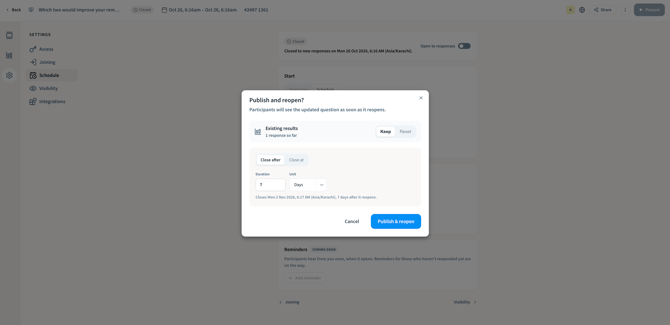
To reopen it with your changes, go to Settings → Schedule and turn on Open to responses. Choose when it should close again (Close after a set time or Close at a specific date), then click Publish & reopen. If your polly already has responses, you’ll see Reset & reopen instead, which clears the existing responses when it reopens.
Share your polly
Click Share in the editor and open the Participants tab. Copy the join link, or download or copy the QR code. Every polly also has a join code, shown in the editor's top bar. People can respond three ways:
- Open the join link
- Scan the QR code
- Go to polly.ai and enter the join code
Paste the link anywhere your audience already is: an email, a calendar invite, a chat message or a slide.
Settings
Open Settings from the left rail in the editor to set up how your polly works. Settings are grouped into five tabs.
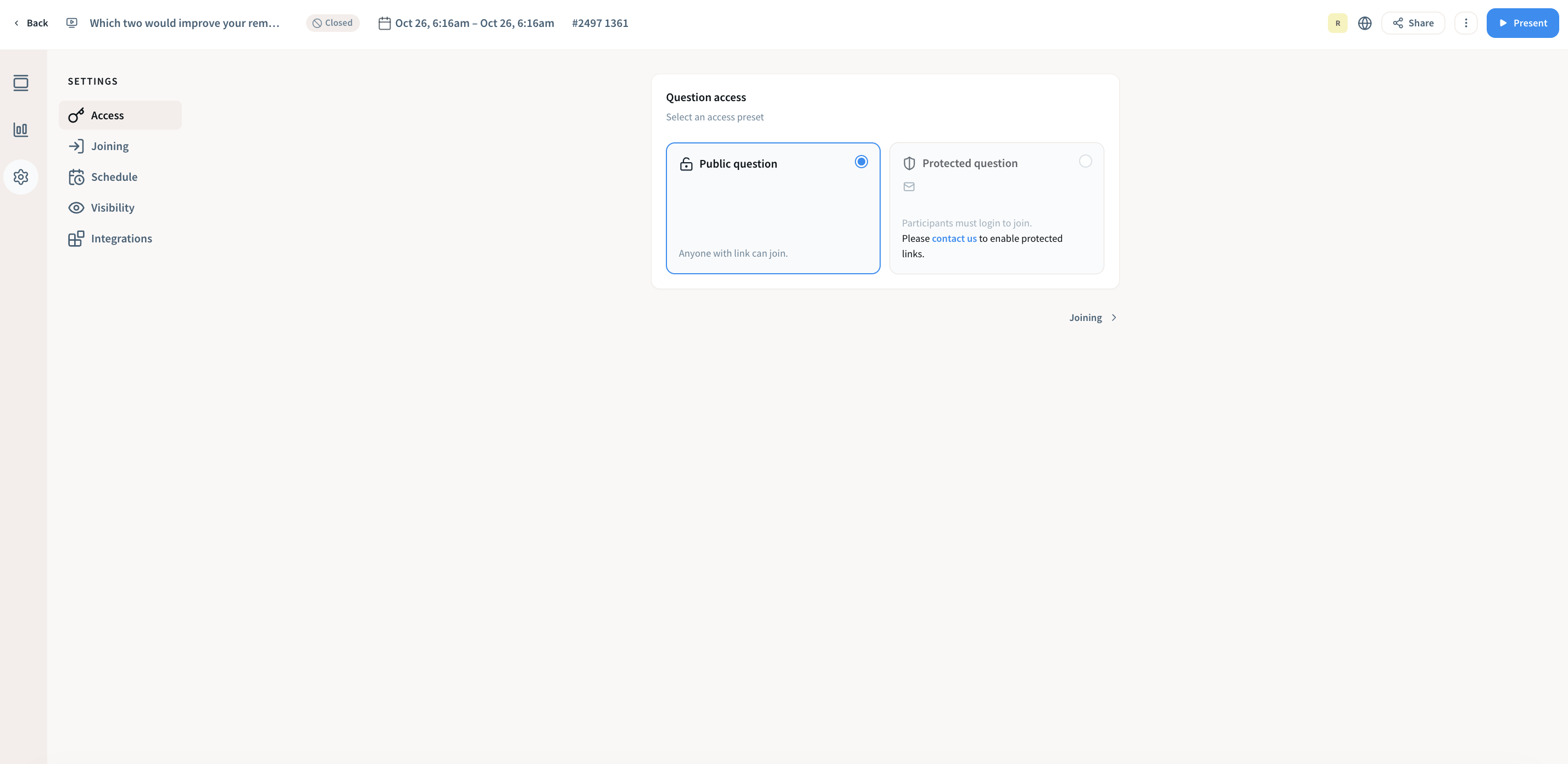
Access
Choose who can respond:
- Public: anyone with the link can join.
- Protected: participants must log in to join.
Joining
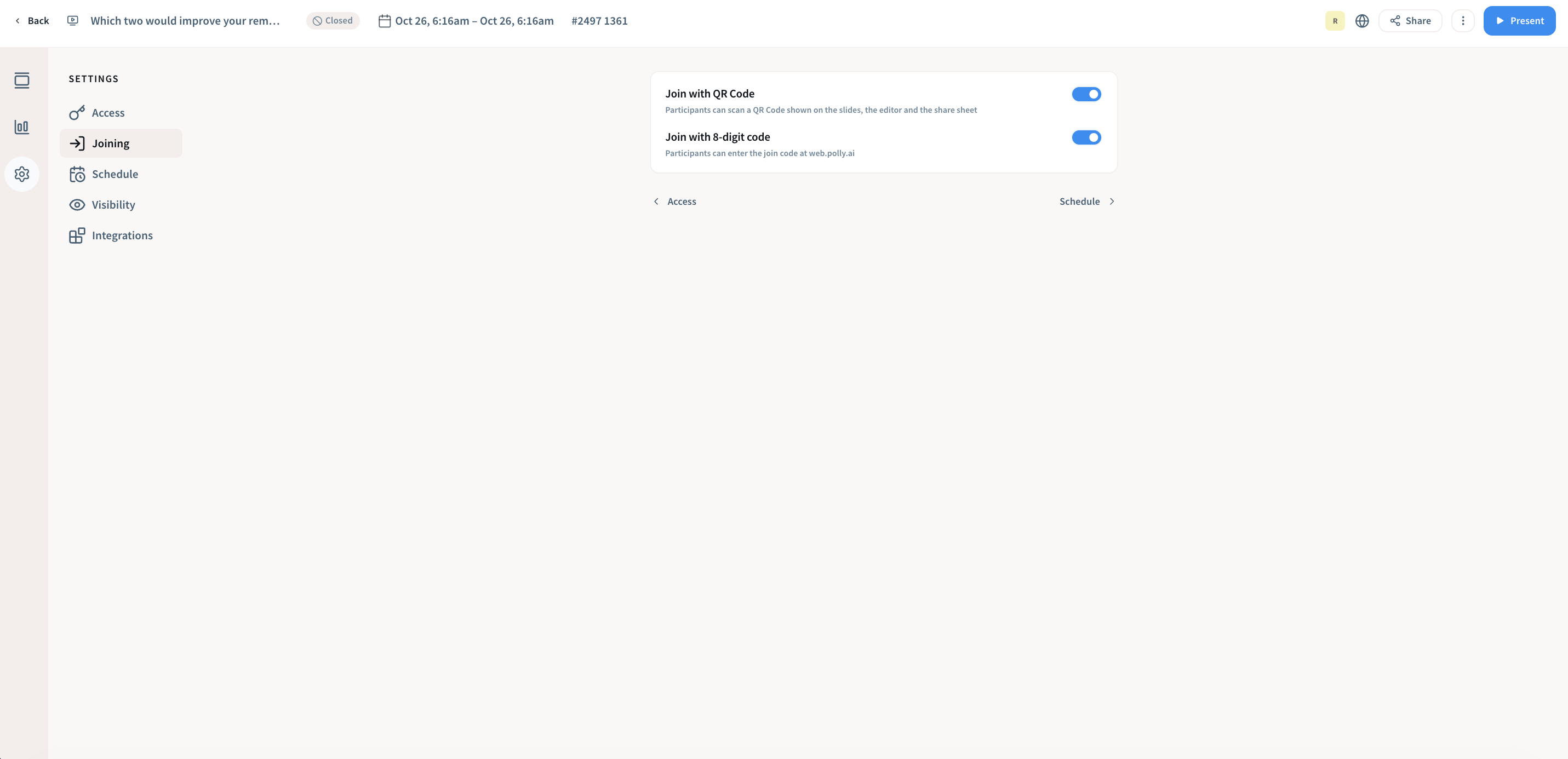
Choose how people can join:
- Join with QR Code: participants scan the QR code shown on the slides, in the editor and in the Share window.
- Join with 8-digit code: participants enter the join code at web.polly.ai.
Schedule
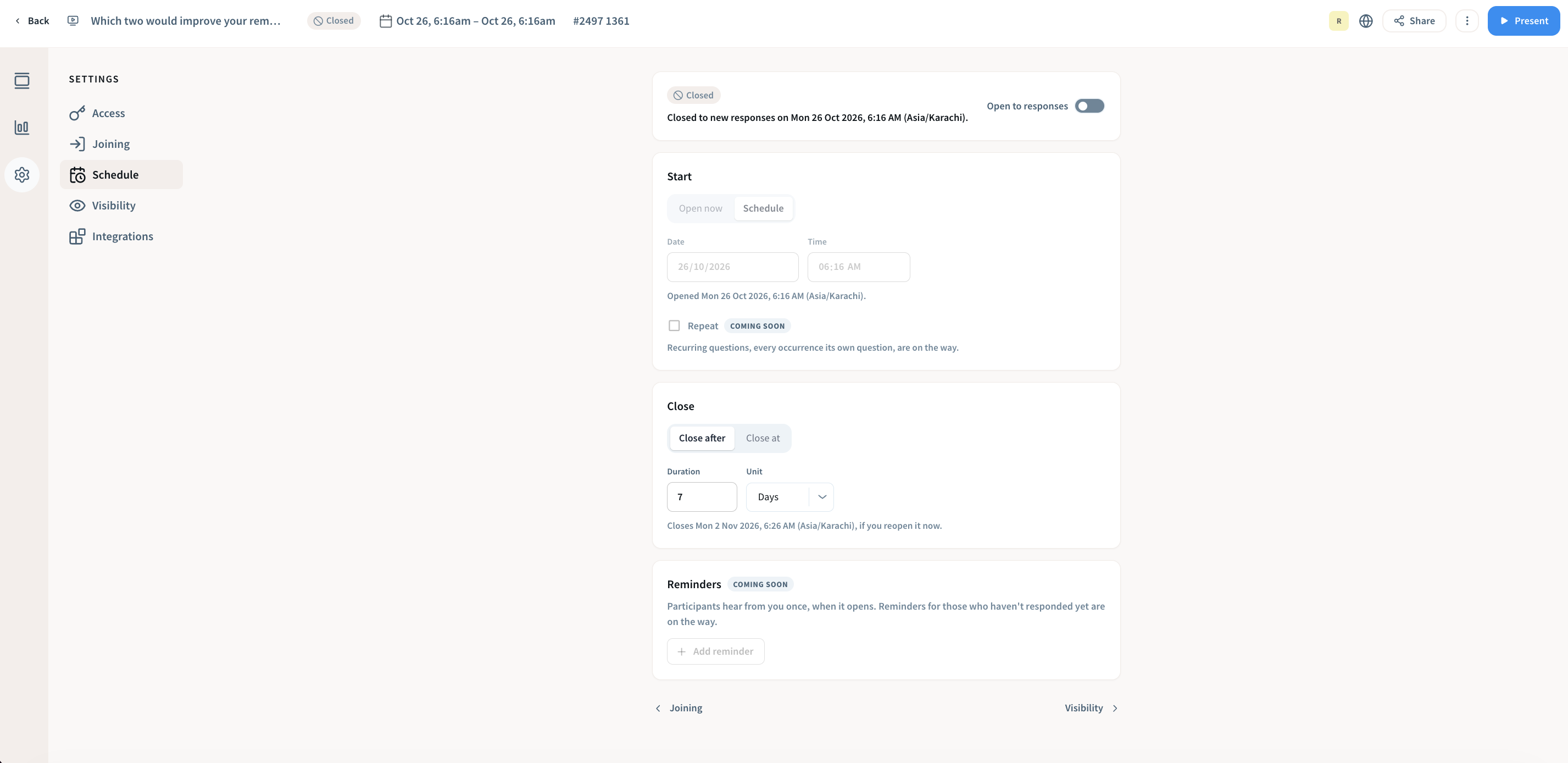
Control when your polly takes responses:
- Open to responses: turn this on or off to open or close your polly right away.
- Start: choose Open now, or Schedule a date and time.
- Close: choose Close after a set duration (for example, 7 days), or Close at a specific date and time.
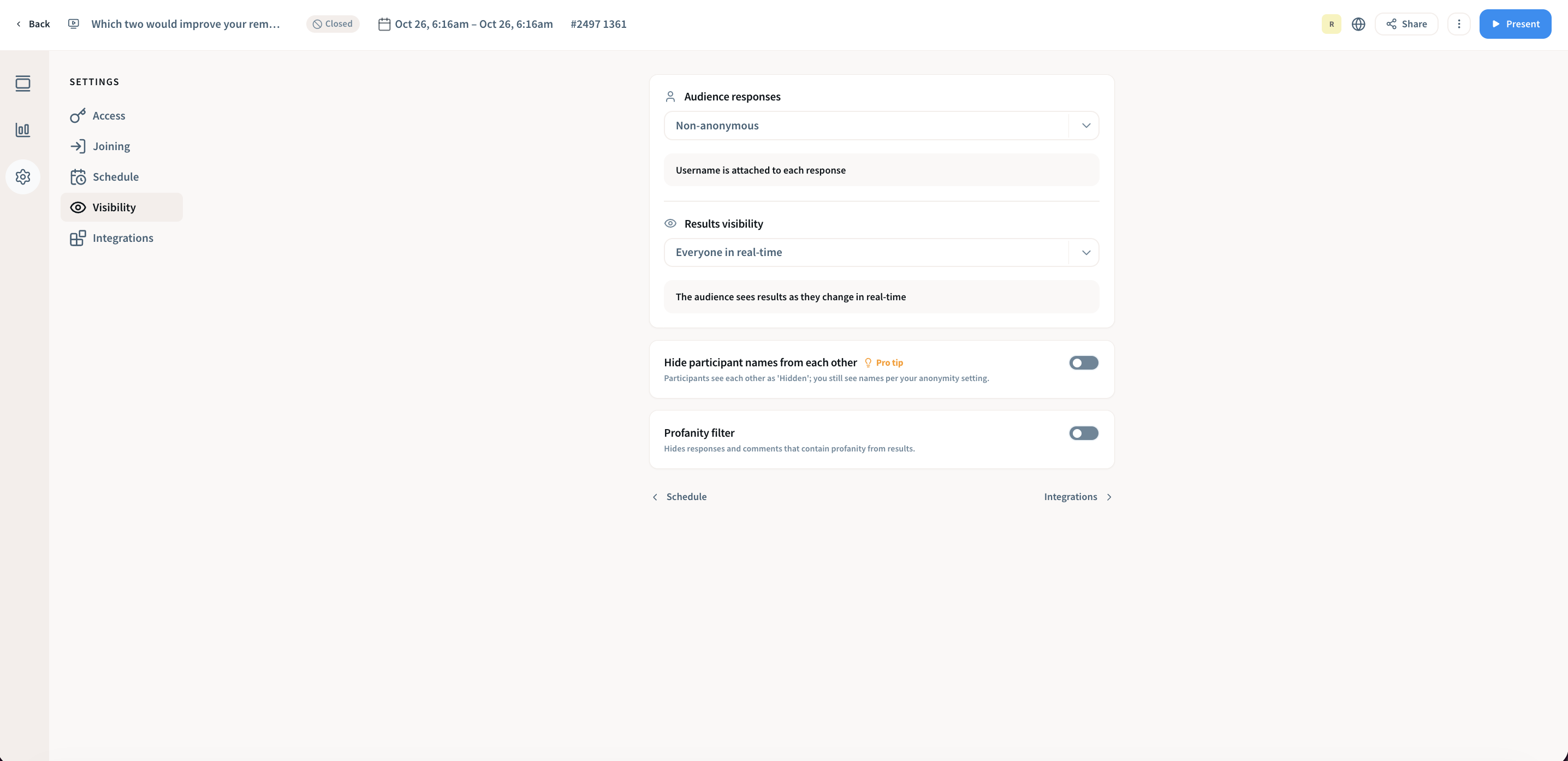
Visibility
Decide what people see:
- Audience responses: choose whether responses are anonymous. With Non-anonymous, each person’s name is attached to their response.
- Results visibility: choose when your audience sees results. With Everyone in real-time, they see results as they change.
- Hide participant names from each other: participants see each other as “Hidden,” while you still see names based on your anonymity setting.
- Profanity filter: hides responses and comments that contain profanity from results.
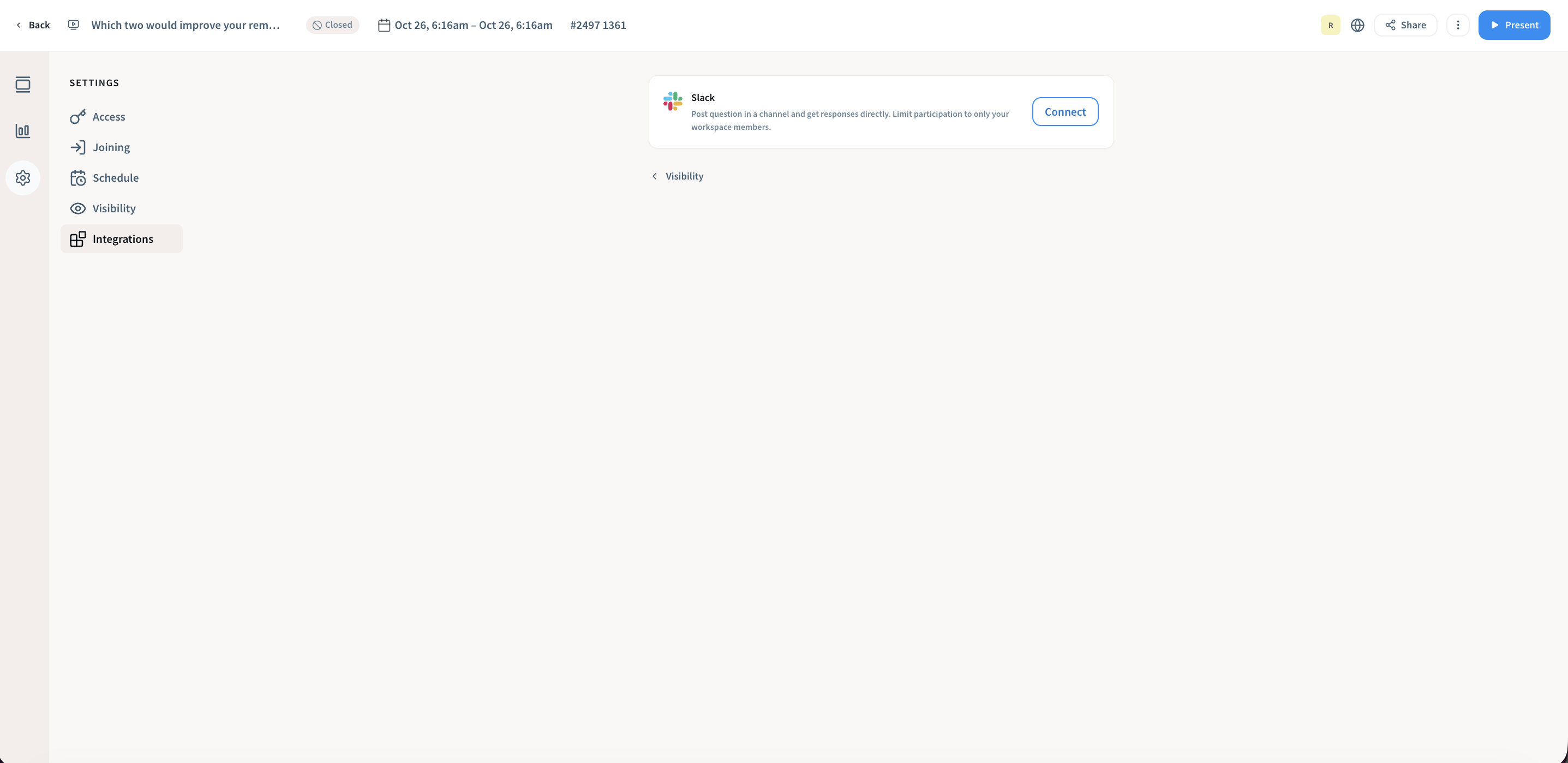
Integrations
Connect Slack to post your polly in a channel and get responses there directly. If you have multiple Slack workspaces, make sure to select the correct one.
Switch between teams and workspaces
Use the switcher in the top-right corner to move between your own space, any teams you belong to and your Slack workspaces. Each one keeps its own pollys.
Post in Slack
Once you've connected Slack, you can post your polly to a channel so people can answer without leaving Slack.
- Click Share and open the Participants tab, or use the window that appears after you publish.
- Click Post in Slack.
- Pick a public or private channel (for a private channel, Polly needs to be invited to it first). You'll see a preview of how your polly will look in Slack.
- Post it.
💡Note: If your polly is still a draft or scheduled, it's posted automatically when it opens. Only the polly's owner can post it to Slack.
What your audience sees in Slack
- Questions are answered right in the Slack message.
- Surveys and Quizzes open in a Slack window to answer.
- Q&A questions go to the message's thread by default.
Responses from Slack and the web are combined, so you see all your results in one place.
Present it live
Once your polly is published, click Present in the top bar to show it full screen. Your audience joins with the code or QR code on screen, and results appear as responses come in.
For a Quiz, choose Live in its settings to run it as a hosted game with a leaderboard, or Self-paced to let people take it in their own time. A live quiz opens as soon as you publish it, ready for you to present.
Results and Exports
Open Results from the left rail in the editor. Results update live as responses come in.
- Surveys and Quizzes have three tabs: Overview, Questions and Audience.
- Q&A shows total questions and upvotes.
Click Export to download the responses.
Share with collaborators
To build pollys with teammates, create them in a shared team. Click Share in the editor and open the Collaborators tab to give people access, then pick a role for each person:
|
Role |
Can do |
|---|---|
|
Owner |
Everything, including connecting Slack, posting to Slack and deleting the polly |
|
Can edit |
Edit the polly, change settings, present and export results |
|
Can view |
View the polly and its results |
You can also invite people outside your team by email.