
Overview
The Polly add-in lets you run live polls, quizzes, surveys and Q&A right inside your PowerPoint deck. You can build a presentation from PowerPoint, add one you've already made in Polly, or add standalone pollys, then present without switching tools.
Your presentation lives in Polly, and your deck shows it. Edits to slides, questions and settings sync both ways. How you arrange your deck stays in your deck.
✏️Note: New to presentations? Start with Getting started with Polly Presentations.
Install the add-in
- Open PowerPoint and click Add-ins in the top toolbar.
- Search for Polly and click Add.
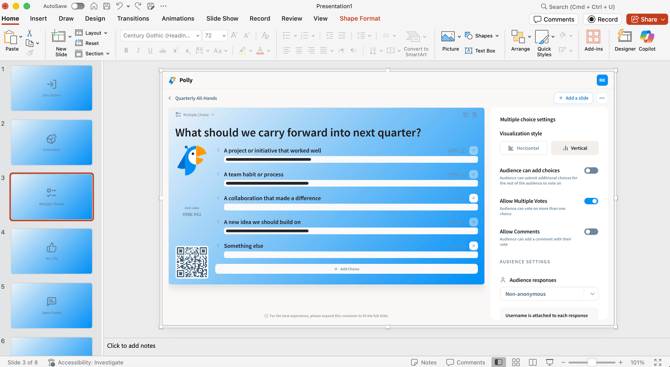
- The Polly add-in opens on your slide.
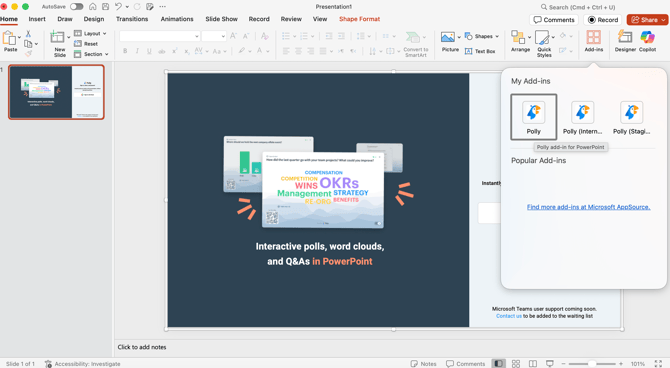
💡Tip: If you don't see the Add-ins button, your IT team may manage add-ins for your organization. Share Polly for Microsoft PowerPoint Installation with them to install it for everyone.
Sign in
- In the add-in, click Sign in. A browser window opens.
- Sign in to Polly. You'll see a 9-digit code.
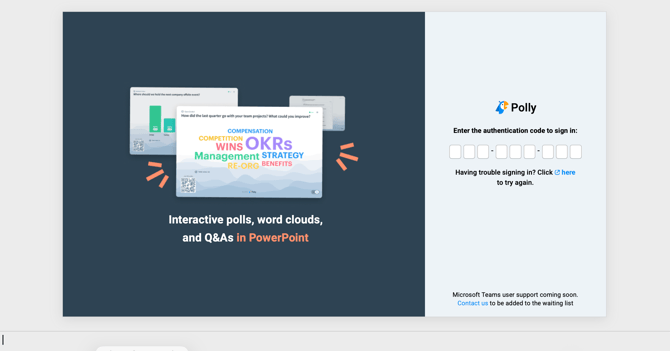
- Copy the code and paste it into the add-in.
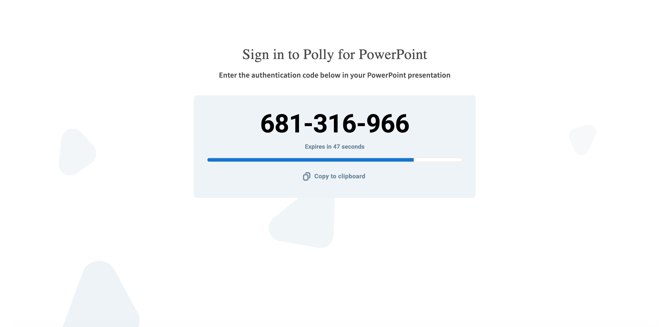
If the code expires, click try again to get a new one.
Add Polly to your deck
Once you're signed in, choose what to add. The add-in has two tabs:
|
Tab |
Use it to |
|---|---|
|
Presentations |
Create a new presentation, or add one you've already built in Polly. Best for sessions with several questions and one join code. |
|
Pollys |
Add standalone pollys you've created in Slack or the web app. |
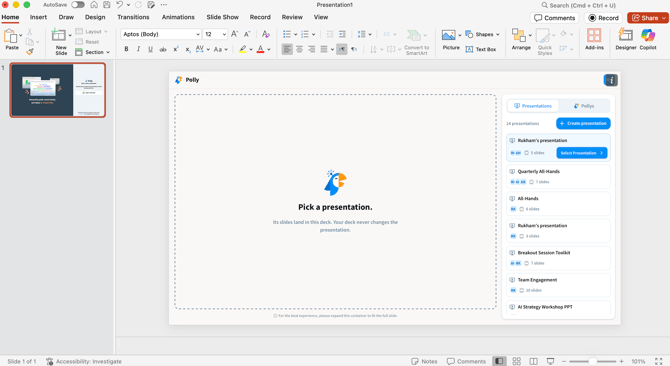
✏️Note: A deck holds either one presentation or standalone pollys. If your deck already has standalone pollys and you add a presentation, you'll be asked to confirm, because the presentation replaces them.
Add a presentation
- Open the Presentations tab.
- Pick an existing presentation, or click Create presentation to start a new one.
- Choose which slides to add. Every slide is selected by default, so untick any you don't want in this deck. Click a slide to preview it on the right.
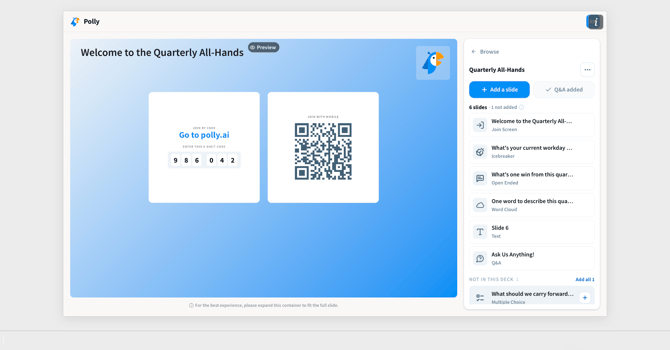
- Click Add Presentation. The selected slides are added to your deck, one PowerPoint slide per presentation slide.
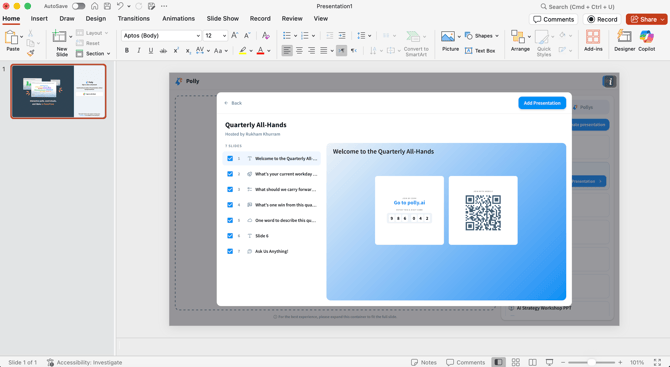
A presentation you create here shows up in Polly on the web straight away. Slides you leave out stay in the presentation, so you can add them to your deck later.
Add standalone pollys
- Open the Pollys tab.
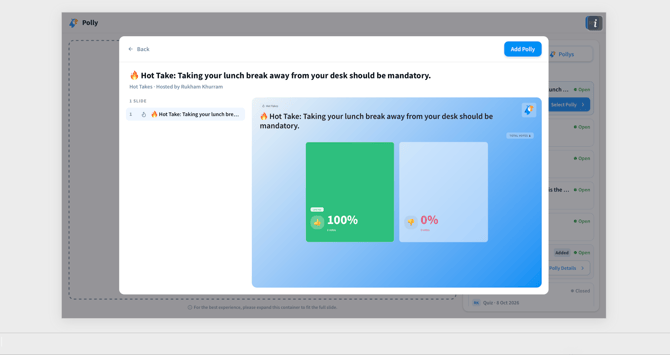
- Pick the polly you want and add it. It gets its own slide in your deck.
- To add another polly, repeat these steps. Pollys are added one at a time.
Edit from PowerPoint
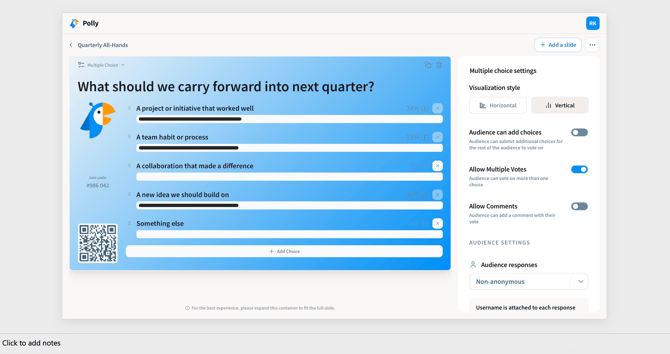
Click into any Polly slide in the add-in to edit its question, options and settings, or add new slides. Changes save to the presentation in Polly, so they show up on the web and in any other deck the presentation is in. If a colleague edits on the web while you're in PowerPoint, you'll see their changes too.
What syncs and what stays in your deck
The same presentation can be used in several decks by different people. So editing content updates everyone, while arranging your own deck only changes your deck.
|
What you do in PowerPoint |
Updates the presentation in Polly? |
|---|---|
|
Add a slide or question |
Yes |
|
Edit a question, options or answers |
Yes |
|
Change slide or presentation settings |
Yes |
|
Change Q&A settings |
Yes |
|
Change the theme, colors, fonts or logo |
Yes |
|
Apply a template |
Yes, after you confirm |
|
Add or change collaborators |
Yes |
|
Duplicate a slide from the add-in |
Yes, creates a new slide |
|
Reorder slides in your deck |
No, only your deck |
|
Delete a slide from your deck |
No, only your deck |
|
Duplicate a slide with PowerPoint's own duplicate |
No, only your deck |
💡Tip: Removed a slide by mistake? Slides that are in the presentation but not in your deck are marked in the add-in. Add them back any time. Their questions and responses are still there.
Present
Start your slideshow in PowerPoint as you normally would. Polly slides go live as you reach them, and your audience's screens follow along.
- Move between slides with PowerPoint's own controls and shortcuts.
- Inside a Quiz, Trivia or Survey, use the arrows or arrow keys to move through its questions, results and leaderboard.
- The presenter bar shows your deck's slide count and titles, in the order you've arranged them.
- The join code and QR code appear on your slides. You can hide them on any slide.
See results
Results update live on your slides while you present. For a quick look at any slide's results, open it in the add-in. For full results and exports, click through to Polly on the web.
Results always belong to the presentation and the session, never to a deck. Reordering or removing slides in your deck doesn't change what's recorded.
FAQ
I reordered my slides in PowerPoint. Why is the order different on the web? Your deck can have its own order. Reordering in PowerPoint changes your deck only, so other people using the same presentation aren't affected.
I deleted a slide from my deck. Are its responses gone? No. The slide, its settings and its responses are all still in the presentation. Add it back from the add-in whenever you need it.
Still stuck? Open a ticket and our support team will help.