
Here's a quick video to get you started
How to create labels?
There are two ways you can create labels in Q&A
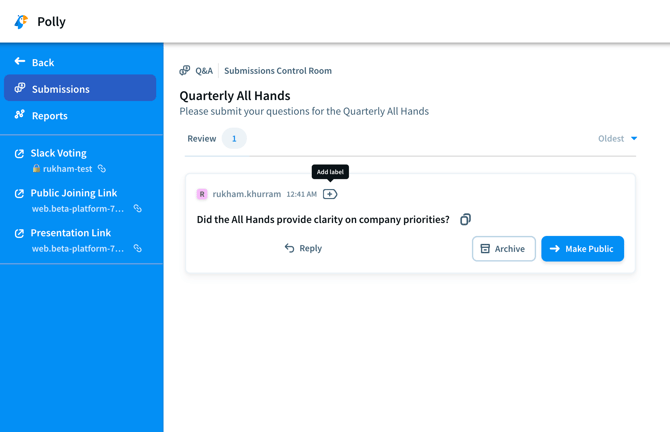
1. From a Submission- Click into a submission you want to label
- Type the name of your new label
- Press Enter to create and apply the label to the submission
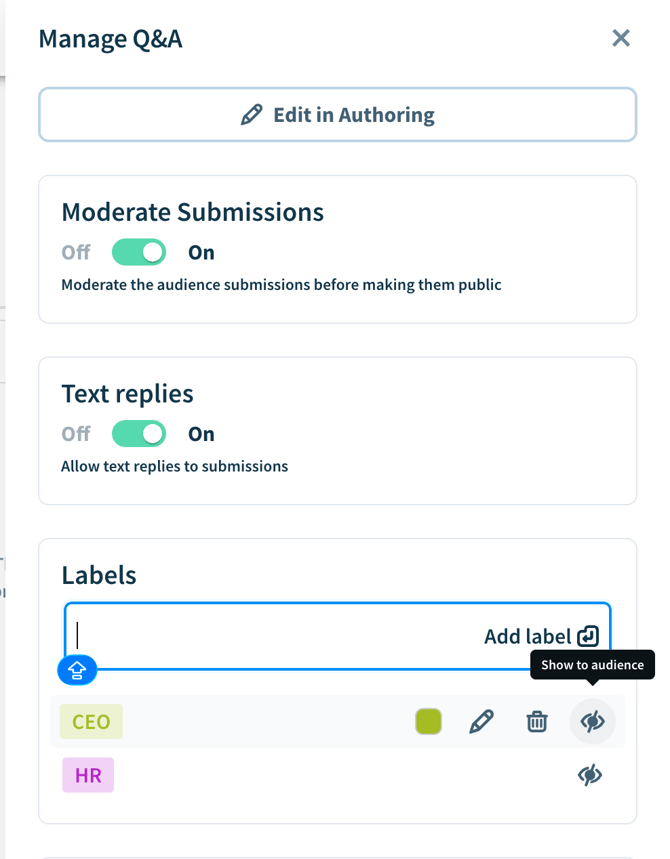
- Click on the Manage option in the Control Room
- Type the name of your new label under
- Press Enter to create the label
- Here you can also control if the labels should be visible to the audience or not by choosing between ‘Show to audience’ or ‘Hidden’
How to Apply Labels
Labels are easy to apply and you have a couple of options depending on your preferences.
• Click directly on the label icon within a submission to apply
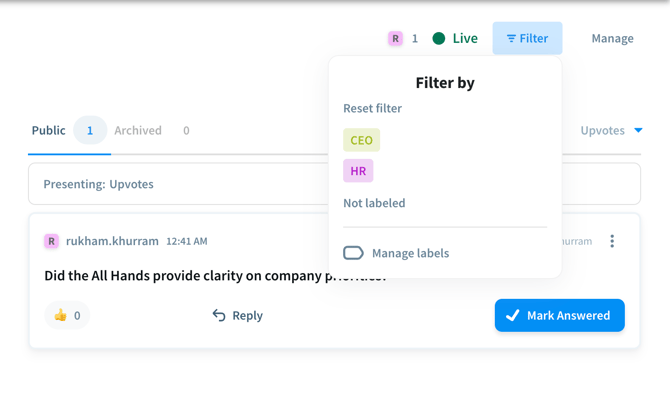
• Alternatively, you can apply labels via the Filter option in the Control Room
2. Audience Visibility
• Labels hidden from the audience will not appear in the Presentation View
• Labels visibility can be changed at any time
💡 Tip: You can quickly filter submissions by a specific label by simply clicking on the label itself, instead of going through the Filter menu.
How Labels Affect the Presentation View
Labels are important when organizing submissions but they behave differently in the Control Room and the Presentation View.
1. Control Room vs Presentation View
- Applying filters and labels in the Control Room only impacts what the moderators see
- These changes do not automatically affect what the audience see in the Presentation View
2. Syncing to the Presentation View
-
After making changes in the Control Room, click Present to apply the current view (including labels) to the Presentation View
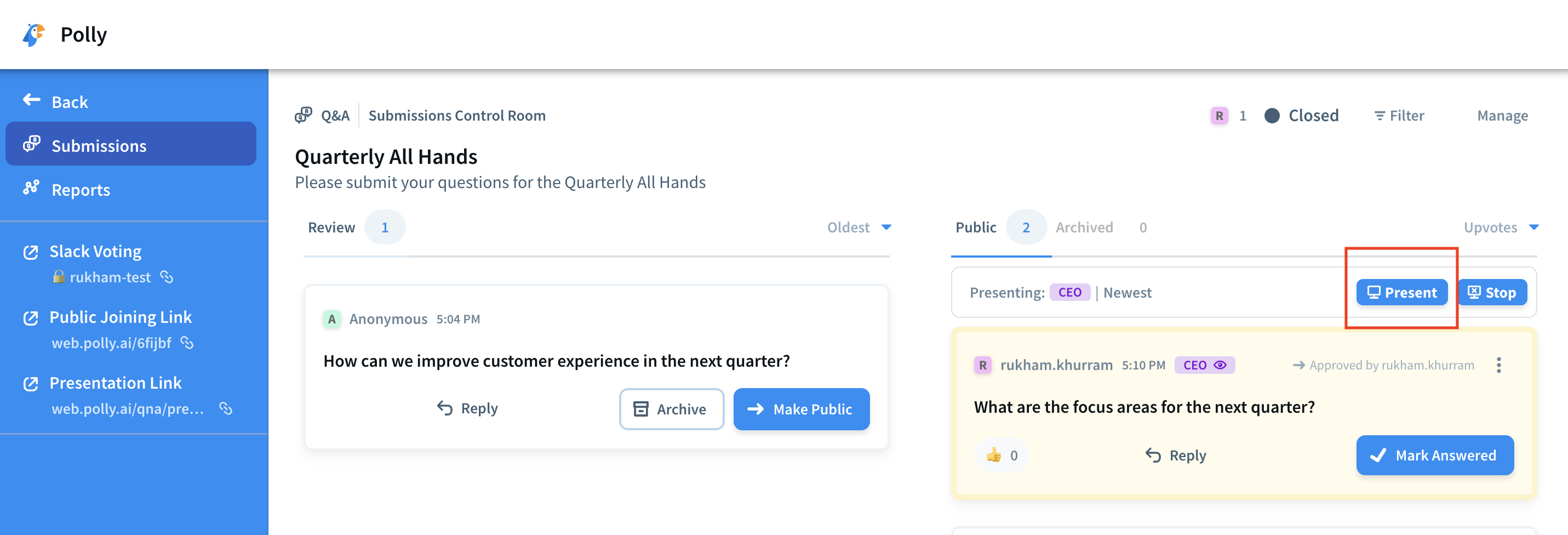
- If you want to reset the view back to its default, click Stop to clear any applied filters from the Presentation View
💡 Learn more about using our Q&A feature in detail by checking out this help article.