
Getting started
Quizzes are created from the Polly web dashboard and can be built either from scratch or using one of the available templates.
To create a new quiz:
-
Navigate to the Polly web dashboard.
-
Select Create and choose Quiz.
-
Choose to start from scratch or select a template from the template library.
Templates can be helpful for common use cases such as onboarding knowledge checks or team engagement events.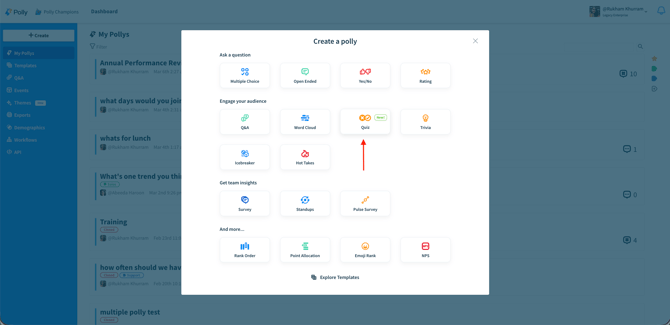
Adding quiz details
Once you start creating your quiz, you’ll first be prompted to add the quiz details.
Add a quiz title, along with an optional intro message to provide context before participants begin. You can also configure a completion message, which will appear after the quiz ends.
These messages are commonly used to share instructions, explain the purpose of the quiz, or reinforce learning objectives once participants finish.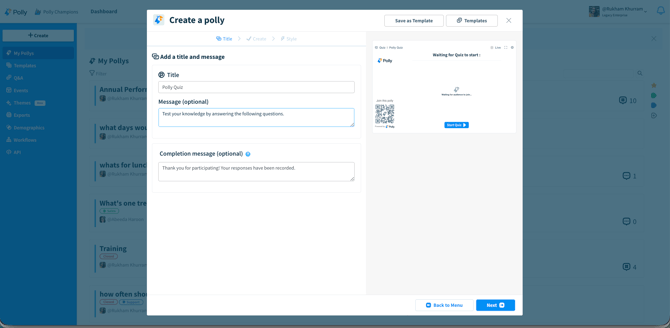
Adding questions
After entering the quiz details, you can begin adding questions.
-
Enter the question text.
-
Add multiple answer choices.
-
Select the correct answer — you can also mark two or more options correct if required
-
Repeat the process for additional questions.
Questions and answer choices can be reordered using drag-and-drop, making it easy to organize the quiz flow before publishing.
💡 Tip: Use the preview panel on the right to double-check question order and answer formatting before launching the quiz.
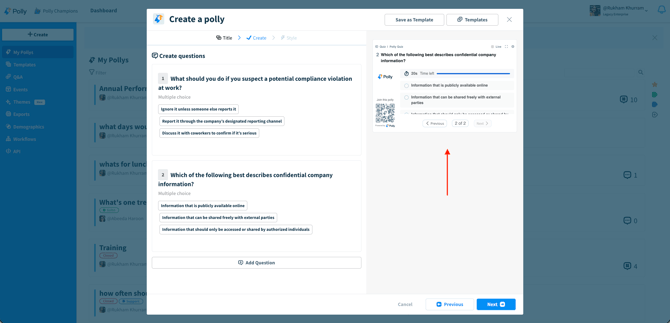
Image Choice in Quizzes
Quizzes also support image-based answer choices, allowing you to add images or GIFs to each option. This makes quizzes more interactive and visually engaging for participants.
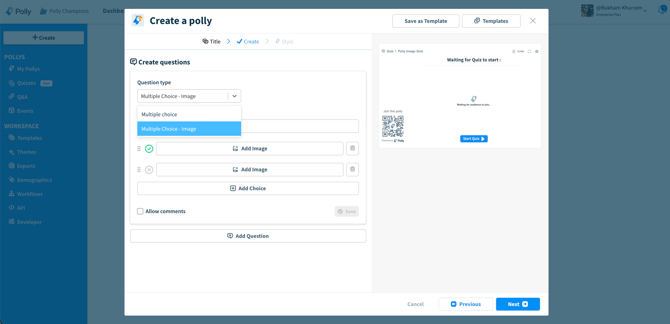
✏️Note: Image choice questions currently support a single correct answer only. Multi-correct answers for image questions will be available soon!
Live mode
Live quizzes are designed for real-time presentations such as workshops, training sessions, or team meetings.
Participants can join using a QR code or join code displayed on the presentation screen, or through the web voting link. Once participants have joined, the presenter can start the quiz and advance through questions as the session progresses.
To run a live quiz:
-
After creating the Quiz
-
Click Present Quiz.
-
Wait for participants to join the session.
-
Select Start Quiz to begin.
As participants join, the presentation view will update in real time showing who has entered the quiz.
Self-paced mode
Self-paced quizzes allow participants to complete the quiz asynchronously.
These quizzes can be distributed in a Slack channel, sent via direct message, or shared using a stand-alone web voting link.
Additional scheduling options are available for self-paced quizzes, including:
-
scheduling when the quiz is published
-
setting a close date
-
sending automated reminders to participants who haven't completed the quiz.
✏️Note: Timers are currently available for Live quizzes. Support for timers in Self-paced quizzes will be available soon.
Quiz Styles
Polly includes several quiz styles that control how the quiz experience behaves.
The available styles include:
-
Classic — is a fast-paced quiz style with per-question scoring. Participants receive right/wrong feedback as they answer, while presenters can display response charts during the quiz. A leaderboard appears at the end, highlighting the top performers once all questions are completed.
This style works well for quick knowledge checks, team quizzes, and meeting activities where participants answer questions together in real time. -
Learning — is designed for training and knowledge assessments where the focus is on understanding rather than competition.
Participants complete all questions first and then review their personal results after finishing the quiz. Presentation results are revealed after all questions have been answered, and leaderboards are not displayed.
This style is ideal for onboarding quizzes, compliance training, or educational sessions where participants should focus on learning outcomes. -
Trivia — is designed for competitive quiz sessions where engagement and friendly competition are the priority.
Participants see results and leaderboard updates after each question, allowing them to track their ranking as the quiz progresses. Correct answers and response charts can also be displayed during the session.
This style works best for team trivia, social activities, and interactive meetings.
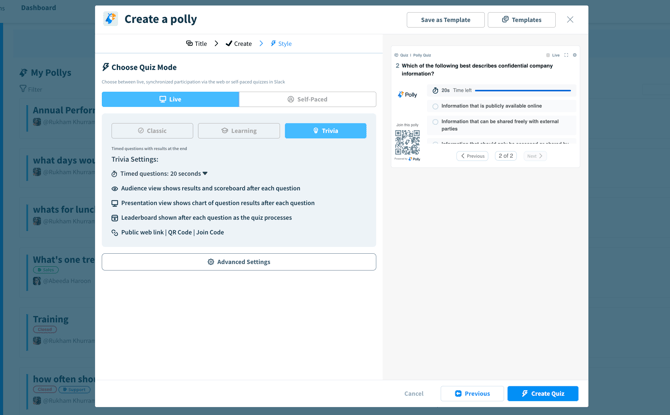
You can also configure additional behaviour using Advanced settings, where you can adjust timers, result visibility, and leaderboard settings.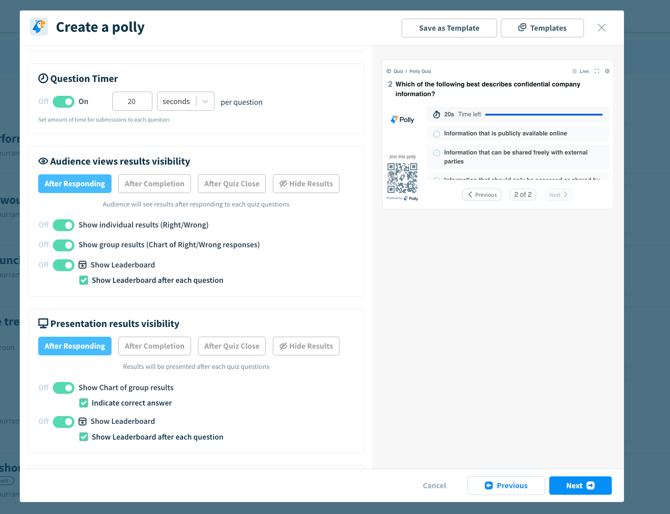
Participant View
Participants can join quizzes either through the web or directly inside Slack depending on how the quiz was distributed.
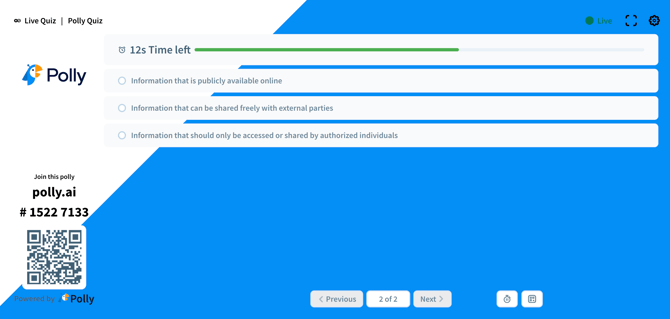
During a live quiz, each question is presented with a timer. Participants select an answer while the timer runs.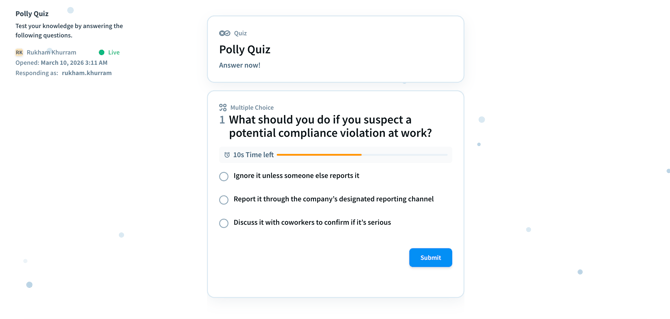
If the timer expires or the presenter advances to the next question, the selected option will automatically be submitted. If no option is selected, the participant will receive zero points for that question.
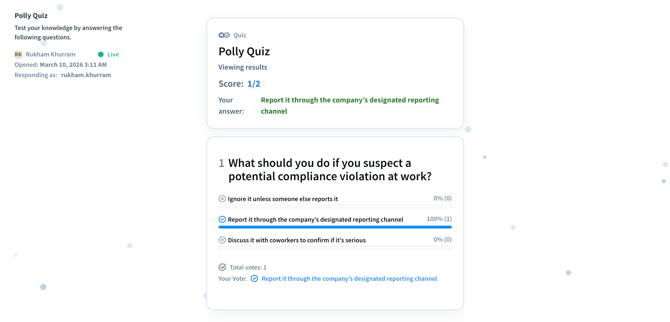
Once the question ends, the results screen displays:
-
the correct answer
-
the total number of responses
-
the percentage of votes for each option.
Leaderboard and Completion
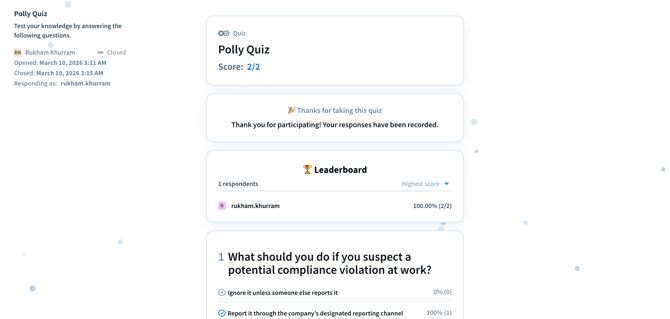
When the quiz ends, participants will see the completion screen along with the message configured during quiz setup.
If the leaderboard feature is enabled, participants will also see a ranking of quiz scores based on their performance.
Presenter View
While running a live quiz, presenters can manage the session directly from the presentation screen. This includes options to pause the timer, hide the QR code, and adjust the graph display. Presenters can also reset or close the quiz from the presentation view when needed.
Reporting and results
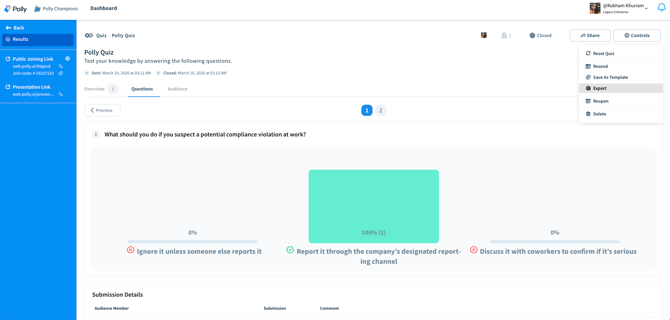
Once the quiz has finished, detailed results are available from the Polly web dashboard.
From the Results view you can:
-
view overall participant scores
-
analyze results for individual questions
-
review participant performance
-
export quiz data for offline analysis via the Export feature
These reports can help identify knowledge gaps, measure training effectiveness, or review engagement across participants.
✏️ Note: For multi-correct questions, scoring is all-or-nothing — participants earn the point only if they select the exact correct set of answers.
Lastly, Polly understands that no celebration is complete without a little confetti — so get ready for a celebratory burst when the leaderboard is revealed! 🎉.gif?width=670&height=310&name=20260310_033219%20(1).gif)
Custom themes
You can customize the appearance of your quiz by applying a theme. Polly provides several pre-built theme templates, or you can create your own using custom brand colours.
Teams often use themes to match company branding or event styling, and you can also add your organization’s logo to the quiz presentation.
Once a theme is applied, the changes are reflected instantly in the presentation view, and you can update the theme at any time while preparing your quiz.
✏️Note: To learn more about creating and applying custom themes, see our guide here.