
Creating a Team Trivia Game
You can start creating a Team Trivia game from Slack, which will take you to the Polly web dashboard, or create it directly from the dashboard.
From Slack
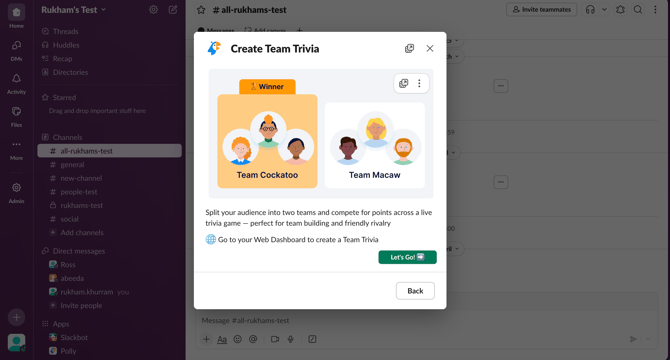
- In Slack, open the Polly creation menu.
- Select Team Trivia.
- You will be redirected to the Polly web dashboard to complete setup.
From the Web Dashboard
- Navigate to the Polly web dashboard.
- Click Create and select Team Trivia.
- You will be taken to the trivia creation screen.
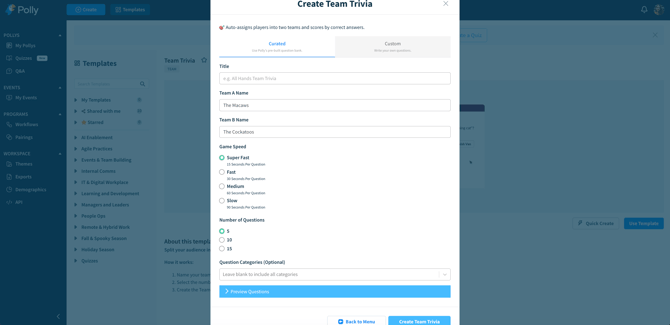
Trivia Creation Options
You can create a Team Trivia game using either Curated or Custom questions.
Curated Trivia
Choose from pre-built question banks.
You can configure:
- Title of the game
- Team names
- Game speed (time per question)
- Number of questions
- Category selection
Additional options:
- Preview questions before sending
- Shuffle questions if needed
Custom Trivia
Create your own set of questions.
You can configure:
- Title of the game
- Team names
- Game speed
- Add your own questions and answer choices
Team Setup & Joining
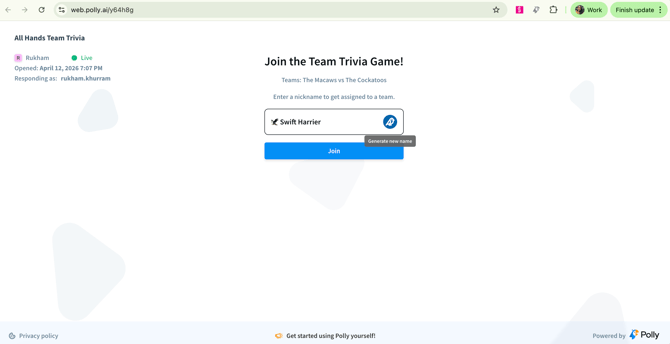
- Participants join using a web joining link or by scanning a QR code.
- Each participant is automatically assigned:
- A team
- A nickname (can be edited or regenerated)
Presenter Controls
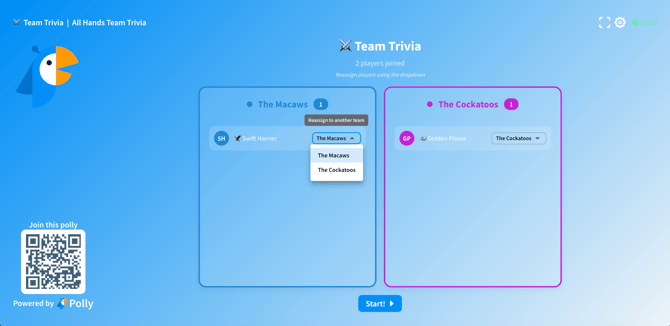
- The presenter can reassign participants to different teams if needed.
- A dropdown next to each participant’s name allows team reassignment.
Running the Trivia Game
Once all participants have joined:
- Click Start to begin the game.
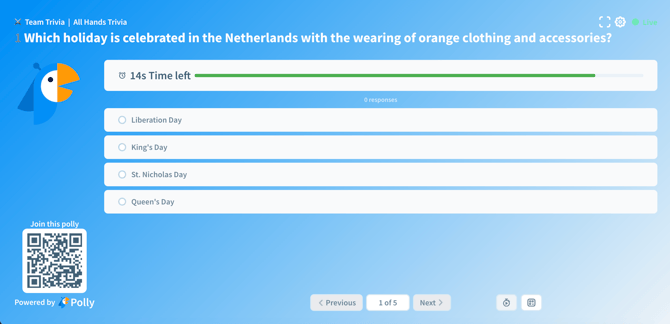
- Questions will appear on:
- The presenter screen
- The participant (web) view
💡 Tip: For the best experience, wait until all participants have joined before starting so teams and scores remain accurate.
During the Game
- A timer is displayed for each question
- Participants submit answers in real time
- The presenter can:
- Move to the next question when ready
- Pause the timer if needed
Participant Experience
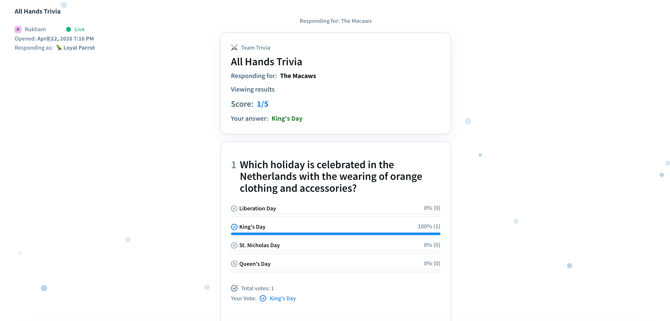
On the participant (web) view:
- Players see the question and answer choices
- A timer indicates how long they have to respond
- After submission and when time ends, they can see:
- Their answer
- The correct answer
- Their score
Presenter View
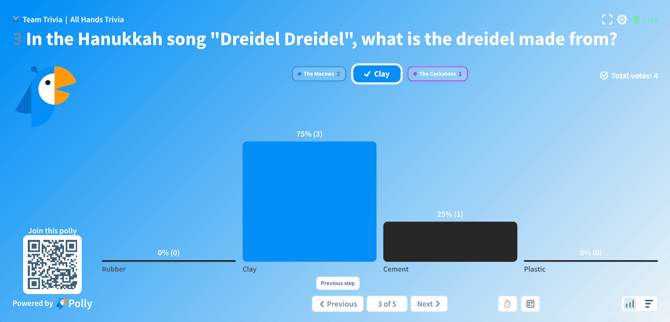
On the presenter screen:
- The correct answer is highlighted after each question
- A breakdown shows:
- Percentage and number of participants who selected each option
- Team scores and totals during the game
- A QR code is available for participants to join at any time
Leaderboard & Results
At the end of the game:
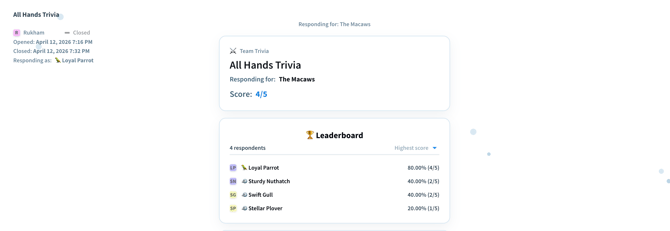
A leaderboard is displayed showing:
- Total scores by teams
- Individual participant scores
- The winning team name
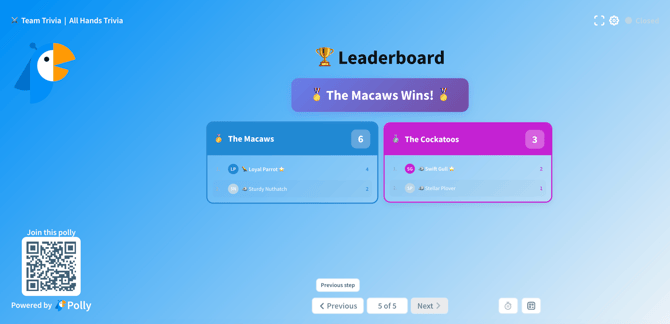
The leaderboard is also visible on the participant (web) view.
Viewing Results
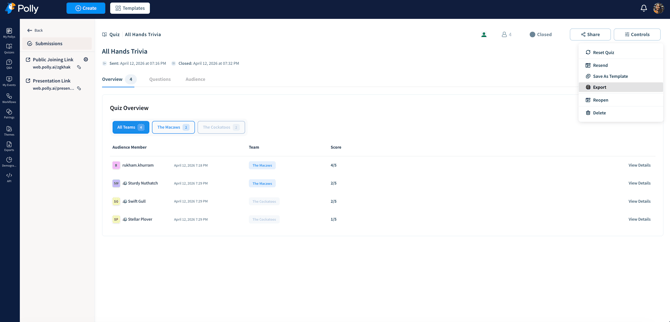
After the game, results are available in the Polly web dashboard.
You can:
- View an overview of team performance
- Filter results by individual teams
- Analyze results by:
- Question view
- Audience view
- Export results as a CSV file
✏️ Note: Team Trivia is available on all paid plans. Learn more about pricing and plans here.