
Create Trivia in a channel
-
Navigate to the Microsoft Teams channel where you want to run trivia.
-
Open the Polly tab, select Create, and choose Trivia.
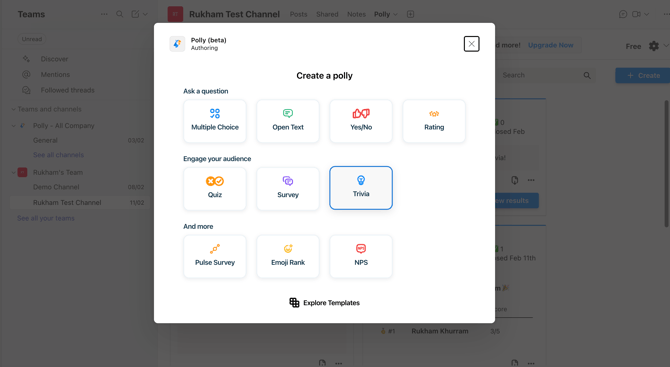
-
Choose a pre-built category, or leave it blank to automatically include a mix of all categories.
-
Select the number of questions for your Trivia:
-
5, 10, 15, or 20
- The default is 10 questions.
-
-
Select the question speed (time allowed per question):
-
10, 15, 20, 30, 45, or 60 seconds
-
Default is 15 seconds.
-
4. Choose to send immediately or schedule the trivia for a later date and time.
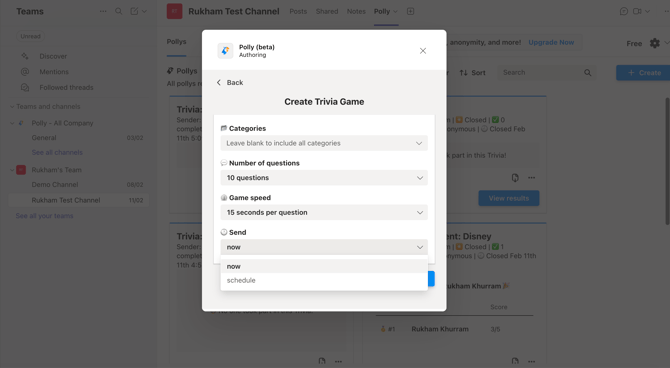
💡Tip: Scheduling is helpful for recurring team activities such as weekly icebreakers or team-building sessions.
Play Trivia in a Channel
Once trivia is posted in the channel, click Join Trivia to participate.
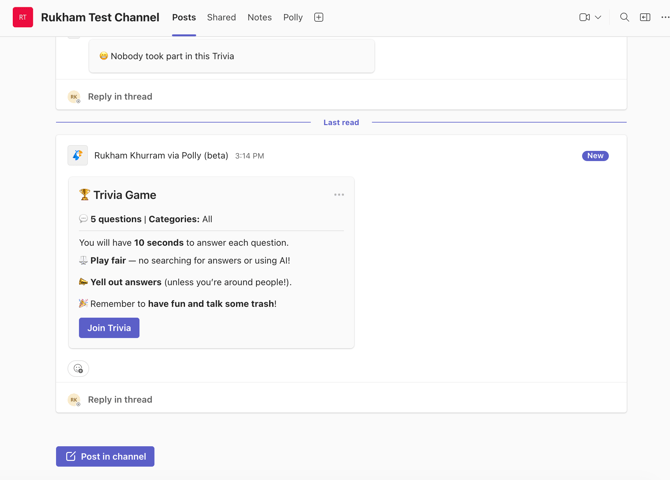
After each answer is submitted, there is a 5-second buffer before the next question appears.
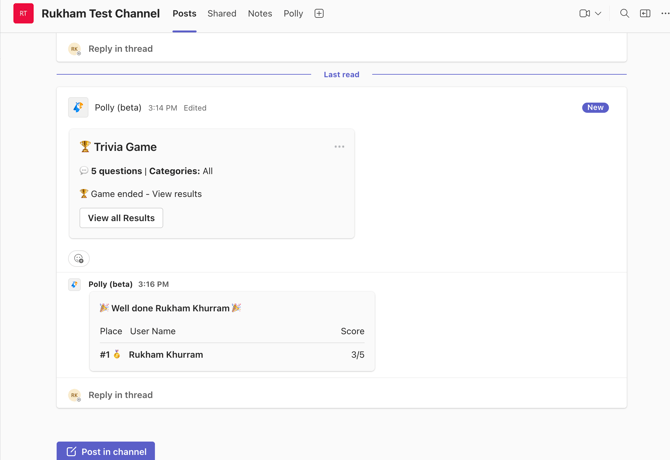
Results are automatically posted in the thread, and the winner is announced at the end of the game.
Manage your Trivia
Once your trivia has been created, you can manage it from the Trivia Management menu.
To access these options:
-
Locate your posted trivia in the channel or group chat.
-
Click the three-dot menu (•••) on the trivia card.
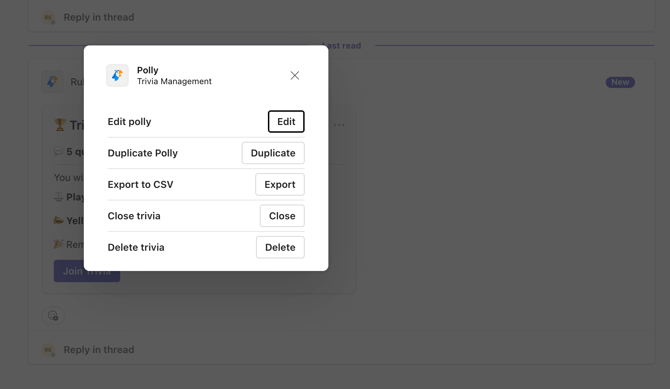
From here, you can take the following actions:
Edit polly
Select Edit to modify your trivia settings before it has started. Use this to adjust configuration details without creating a new trivia.
Duplicate Trivia
Use Duplicate to create a copy of an existing trivia game. This is helpful if you want to reuse the same settings or run a similar game for another session
Export to CSV
Select Export to download the trivia results as a CSV file. This allows you to review responses, analyze performance, or share results outside of Teams.
Close trivia
Use Close to manually end an active trivia game (if you have changed your mind). Once closed, participants will no longer be able to submit responses.
Delete Trivia
Use Delete to permanently remove the trivia from the channel or meeting chat.
⚠️ This action cannot be undone.
Run Trivia in a Teams meeting
Trivia can also be launched directly within a Microsoft Teams meeting.
-
Create and save trivia ahead of time, then send it once the meeting begins, or
-
Use Quick Create to build and launch trivia during the meeting.
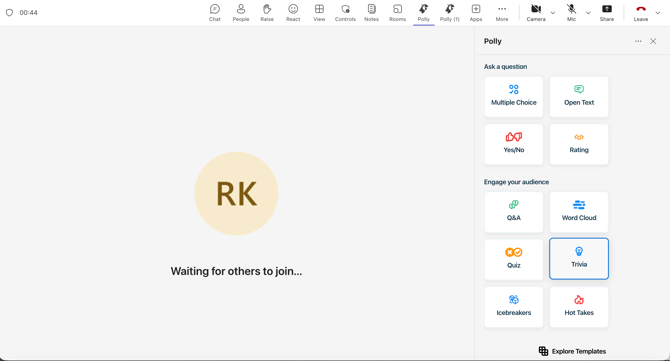
Results will be announced in the meeting chat once the game concludes.
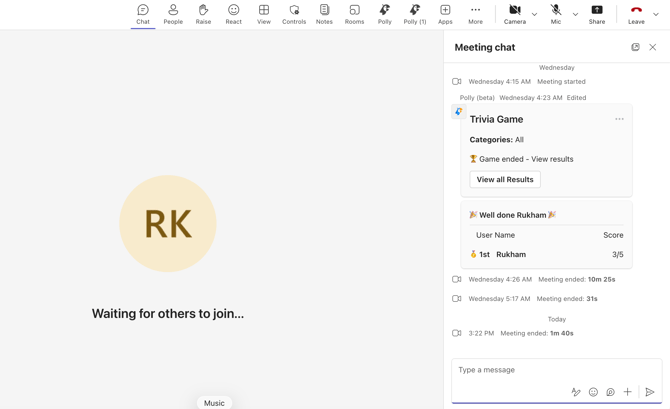
✏️ Note: Trivia settings such as question count and speed cannot be changed once the game has started. Learn more about running Trivia in Teams meeting here.