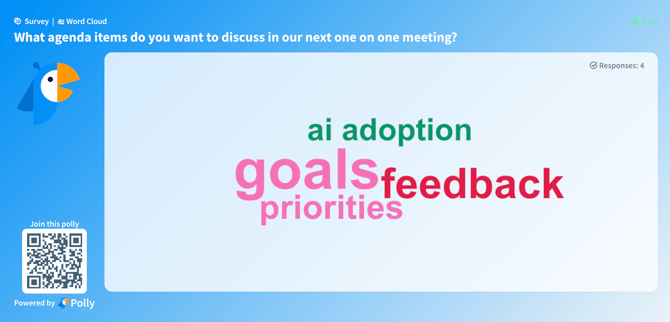
Presentation view provides a clean, browser-based display of survey results that can be shared on a screen during meetings, workshops, or company presentations. This view updates automatically as participants submit responses, allowing presenters to review feedback with their audience in real time.
Accessing the Presentation View
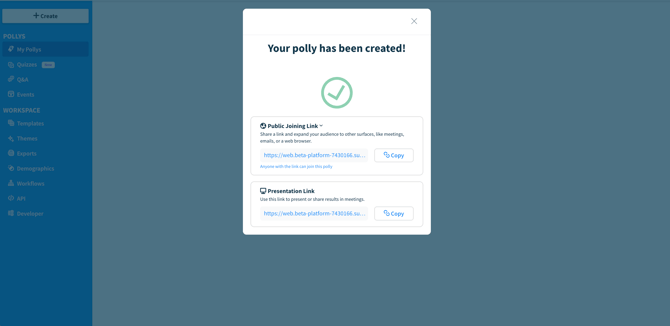
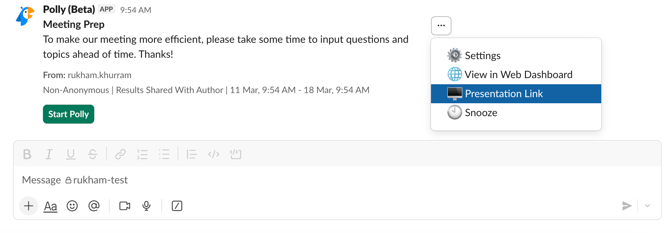
Every survey created in Polly automatically generates a presentation link that opens the survey’s presentation view in your browser.
Slack:
-
Navigate to the polly post and click the three dots next to the title to open the overflow menu.
-
Select the presentation link option to open the presentation view.
-
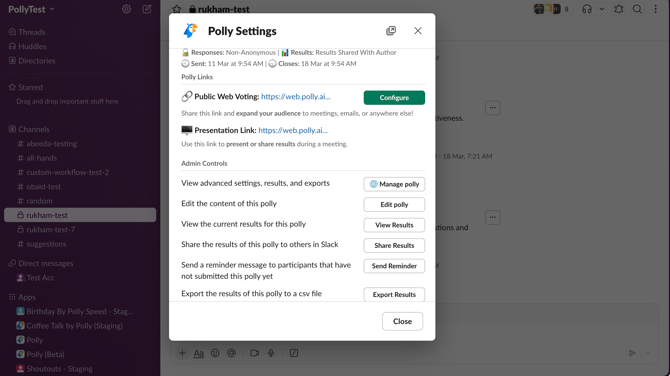
You can also access the presentation link from the polly settings page, where it is displayed as well.
Web Dashboard:
-
Go to the Polly web app and select your Polly from the list
-
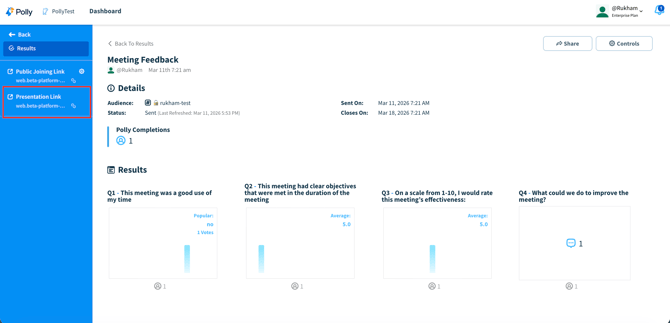
In the left-hand menu, you will see the presentation link displayed.
What the presentation view displays
The survey presentation view is designed to provide a clear and distraction-free display of results while presenting.
Depending on the survey question type, the presentation screen may show:
-
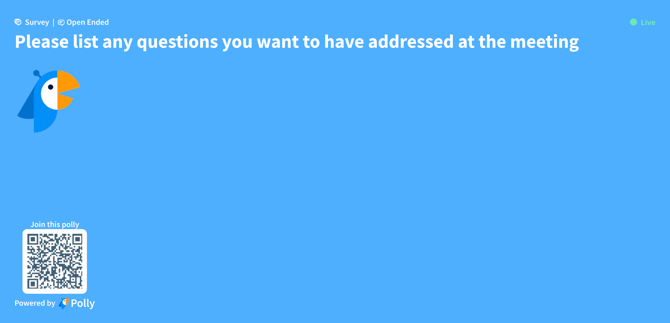
The survey question currently being displayed
-
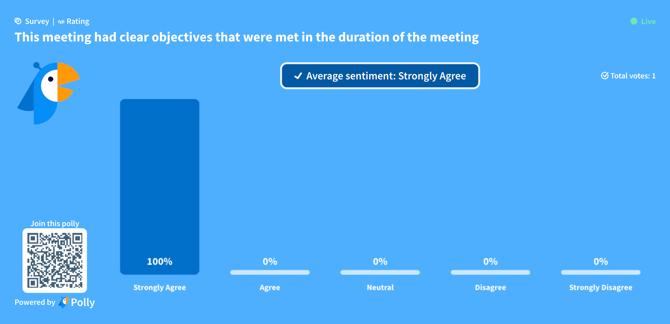
Response charts that update in real time as participants respond
-
The total number of responses received
-
The distribution of answers across options
As new responses are submitted, the charts and response counts update automatically so presenters can review feedback live with the audience.
-
The top left displays the type of Polly.
-
The top right displays the Polly status, such as Live or Closed.
✏️Note: Presentation view is now also supported for Rank Order and Point Allocation Polly types.
Joining via QR Code or Join Code
Participants can join the survey at any time by scanning the QR code displayed in the presentation view. If join code is enabled, participants can also go to polly.ai and enter the join code shown on screen.
Custom Theme:
You can customize the appearance of the presentation view by applying a theme. Polly provides several pre-built theme templates, or you can create your own using custom brand colours.
Themes can be used to align the presentation with your company branding or event styling, and you also have the option to add your organization’s logo.
Once a theme is applied, the updates are reflected instantly in the presentation view, and you can modify the theme at any time while preparing your survey. To learn more about creating and applying custom themes, see our guide here.
✏️Note: The survey presentation view now also supports word clouds, allowing open-text responses to be displayed dynamically as a word cloud during presentations.